

出勤 退勤 記録帳 勤務時間を記録するためのアプリ
Business
Record and display the arrival and departure dates and times, and display working hours
- Downloads
- 4+
- on Google Play
- Price
- $9.49
- No in-app purchases
- Updated
- Jul 24
- 2026 · v26.7.5
Screenshots



About 出勤 退勤 記録帳 勤務時間を記録するためのアプリ
Press the Clock In button to record your clock-in date and time.
You can record your clock-out date and time by clicking "Record Clock Out Date and Time" in the table.
Work hours are calculated and displayed based on your clock-in date and time, clock-out date and time, and break time.
Work hours are displayed as a line graph and bar graph.
■Differences from the free version
No ads are displayed.
A star will appear on the app icon.
The screen design is different.
All other features are the same as the free version.
・Record Clock In Date and Time
1. Tap the "Clock In" button.
If you press and hold the button, steps 2 and 3 will be skipped,
and the current date and time will be set.
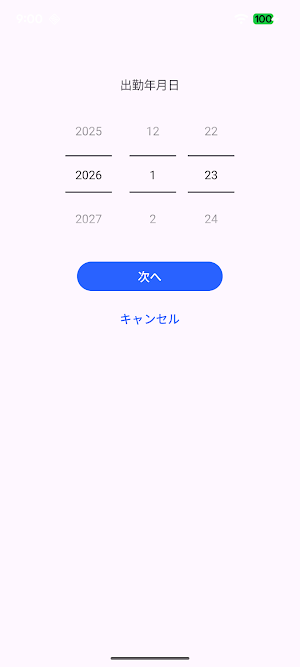
2. Select the date and time and tap "Next."
3. Enter your clock-in time and tap OK.
・To record your clock-out date and time
1. Tap the "Clock Out Date and Time" button in the clock-out date and time column in the table.
If you press and hold the button, steps 2 and 3 will be skipped,
and the current date and time will be set.
2. Select the date and tap "Next."
3. Enter your clock-out time and tap "Done."
▼Sort Order
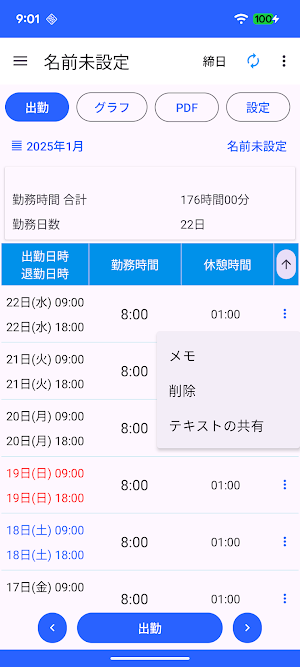
Tap the arrow (↑) on the right side of the table to change the sort order.
▼Notes
Tap Notes from the menu on the right side of the table to add a note.
▼Work Hours
Work hours in the table are automatically displayed based on the start and end dates and times, and break times.
▼Setting Start and End Times
Enter the time in the Start and End Times settings.
▼Setting Start and End Times
Enter the time in the Clock-out Times settings.
▼Setting Break Times
Enter the time in the Break Times settings.
▼Create PDF File
Create a PDF file from the displayed screen.
Specify the year and month to create a PDF file containing the start and end dates and times, working hours, break times, and notes.
To print, send the file to a print-enabled app such as Drive before printing.
▼Create CSV File
Specify the user and year and month to create a CSV file.
You can create a CSV file containing the start and end dates and times, working hours, break times, and notes.
To print, please send the file to a print-enabled app such as Drive and then print.
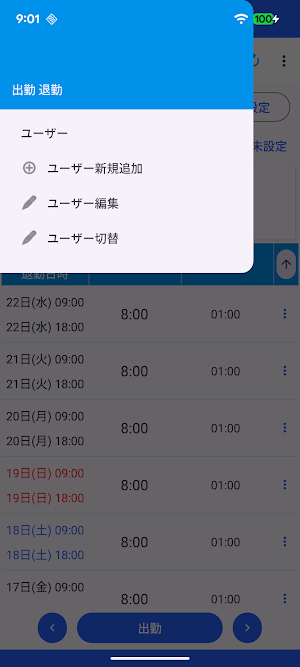
▼Add New User
Add a name from Add New User to separate records.
Enter the user's name and group name (you can leave it blank).
To edit, tap the table from Edit User to open the editing screen.
Tap the Switch User button in Switch Users to switch users.
▼Graph
Tap the graph to display the selection screen.
The following list will be displayed on the selection screen, and tap to display the graph.
・Monthly graph
・Work hours graph
・Work hour rhythm table
・Annual total/average graph
・All-period graph
▼Dark Theme
Turning the dark theme on will switch to a black-based color scheme.
Turning it off will return to the standard white-based screen.
▼To delete all records
You can delete all records by selecting Clear All Data from the menu in the upper right corner.
You can record your clock-out date and time by clicking "Record Clock Out Date and Time" in the table.
Work hours are calculated and displayed based on your clock-in date and time, clock-out date and time, and break time.
Work hours are displayed as a line graph and bar graph.
■Differences from the free version
No ads are displayed.
A star will appear on the app icon.
The screen design is different.
All other features are the same as the free version.
・Record Clock In Date and Time
1. Tap the "Clock In" button.
If you press and hold the button, steps 2 and 3 will be skipped,
and the current date and time will be set.
2. Select the date and time and tap "Next."
3. Enter your clock-in time and tap OK.
・To record your clock-out date and time
1. Tap the "Clock Out Date and Time" button in the clock-out date and time column in the table.
If you press and hold the button, steps 2 and 3 will be skipped,
and the current date and time will be set.
2. Select the date and tap "Next."
3. Enter your clock-out time and tap "Done."
▼Sort Order
Tap the arrow (↑) on the right side of the table to change the sort order.
▼Notes
Tap Notes from the menu on the right side of the table to add a note.
▼Work Hours
Work hours in the table are automatically displayed based on the start and end dates and times, and break times.
▼Setting Start and End Times
Enter the time in the Start and End Times settings.
▼Setting Start and End Times
Enter the time in the Clock-out Times settings.
▼Setting Break Times
Enter the time in the Break Times settings.
▼Create PDF File
Create a PDF file from the displayed screen.
Specify the year and month to create a PDF file containing the start and end dates and times, working hours, break times, and notes.
To print, send the file to a print-enabled app such as Drive before printing.
▼Create CSV File
Specify the user and year and month to create a CSV file.
You can create a CSV file containing the start and end dates and times, working hours, break times, and notes.
To print, please send the file to a print-enabled app such as Drive and then print.
▼Add New User
Add a name from Add New User to separate records.
Enter the user's name and group name (you can leave it blank).
To edit, tap the table from Edit User to open the editing screen.
Tap the Switch User button in Switch Users to switch users.
▼Graph
Tap the graph to display the selection screen.
The following list will be displayed on the selection screen, and tap to display the graph.
・Monthly graph
・Work hours graph
・Work hour rhythm table
・Annual total/average graph
・All-period graph
▼Dark Theme
Turning the dark theme on will switch to a black-based color scheme.
Turning it off will return to the standard white-based screen.
▼To delete all records
You can delete all records by selecting Clear All Data from the menu in the upper right corner.
What’s new
Version 26.7.5 · Updated July 24, 2026
アプリの画面を変更しました
Alternatives to 出勤 退勤 記録帳 勤務時間を記録するためのアプリ
Looking for apps like 出勤 退勤 記録帳 勤務時間を記録するためのアプリ? Here are 6 similar Android apps on Google Play. 2 of the 6 are free to download.
-
睡眠時間 記録帳
-
医療費 記録帳 医療費と通院費を管理するためのアプリ
-
体温 記録帳 体温管理と体温のグラフを表示
-
光熱費 メモ 記録 電気代 ガス代 水道代 光熱費管理アプリ
-
Transportation expenses
-
Utilities cost note
| App | Rating | Price | Installs | Last updated | Compare |
|---|---|---|---|---|---|
| 出勤 退勤 記録帳 勤務時間を記録するためのアプリ | – | $9.49 | 1+ | Jul 24, 2026 | |
| 睡眠時間 記録帳 | – | 7.49 USD | 10+ | Jan 20, 2026 | Compare |
| 医療費 記録帳 医療費と通院費を管理するためのアプリ | – | 6.49 USD | 10+ | Mar 17, 2026 | Compare |
| 体温 記録帳 体温管理と体温のグラフを表示 | – | 6.49 USD | 5+ | Mar 23, 2026 | Compare |
| 光熱費 メモ 記録 電気代 ガス代 水道代 光熱費管理アプリ | – | 7.99 USD | 10+ | Mar 19, 2026 | Compare |
| Transportation expenses | – | Free | 100+ | Aug 25, 2026 | Compare |
| Utilities cost note | – | Free | 50,000+ | Aug 25, 2026 | Compare |