

Shopping List
OneLightApplication Shopping Contains ads
Very simple shopping list making app
- Downloads
- 18+
- on Google Play
- Price
- Free
- No in-app purchases
- Updated
- Feb 5
- 2026 · v3.0.1
Screenshots


About Shopping List
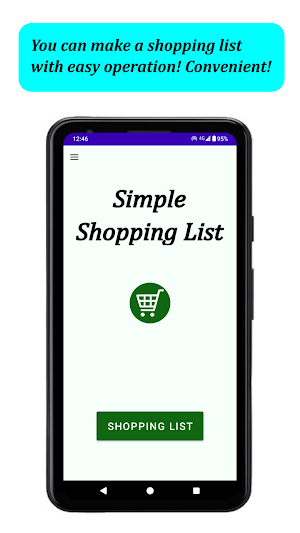
Very simple shopping list!
You can make a shopping list with simple operations!
“Let's buy carrots at Seiyu on March 24th.” “One bag of green peppers will cost $2 at Summit on April 3rd.”
You can prevent forgetting to buy by looking at flyers and registering bargain items!
You can also register products from flyers of various stores and compare prices, which is very convenient!
[How to use]
*There are three screens to use : [Calendar screen], [List by day screen], and [Register/Edit products screen].
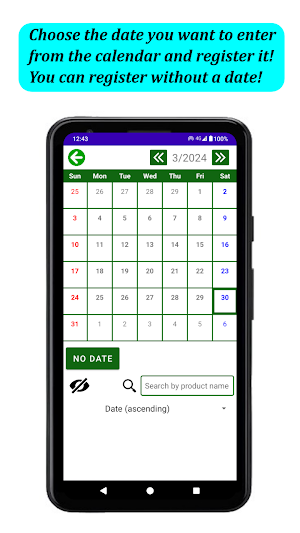
[Top of the calendar screen]
*Tap a date on the calendar to go to the "Register/Edit products" screen, where you can register the products you are planning to buy or want to buy on that date. However, if a product has already been registered for that day, you will be redirected to the "List by day" screen.
*A horizontal bar mark will be placed on the calendar for the date when the product is registered.
*If you want to register without specifying the date, tap the "No date" button on the lower left of the calendar.
*The date can be changed from the edit screen.
[Bottom of the calendar screen]
*Enter a product name in the search box to narrow down your search. (The search condition is an exact match.)
*Only products after the current date will be displayed.
*Checked data will not be displayed.
*You can sort the list by using the drop-down list.
*You can use the eye icon on the left side of the screen to show or hide the calendar.
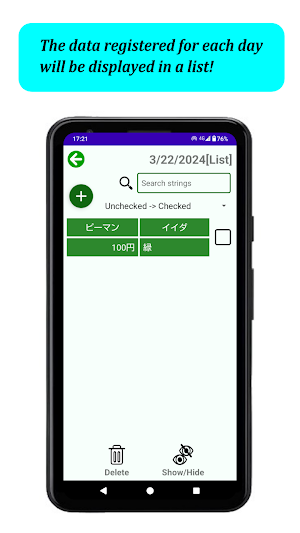
[List by day screen]
*The list of registered products is displayed.
*Tap to go to the Register/Edit products screen where you can edit.
*Tap the box on the right to change the status to checked. Tapping the box on the right changes the status of the check mark.
*Tap the "cross" icon in the top left corner to move to the Register/Edit products screen for that day.
*Enter search strings in the search box in the top right corner to narrow down your search. (The search condition is a partial match. You can search by product name, store name, or memo.)
*You can sort the list by using the drop-down list.
*You can delete checked data from the “Delete” icon at the bottom of the screen.
*You can switch between showing and hiding checked data using the “Show/Hide” icon at the bottom of the screen.
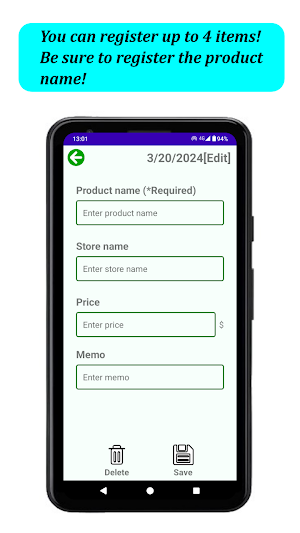
[Register/Edit products screen]
*Product name, store name, price, and memo can be registered.
*Product name must be entered.
*Tap the "Delete" icon on the bottom toolbar to delete registered items.
*If you wish to delete all items, you can do so from the "Data Deletion" menu in the navigation drawer of the "Top screen".
*You can change the date only in the editing mode.
[Settings]
*You can change the following settings from the "Settings" menu in the navigation drawer on the top screen.
1. The unit used for prices.
2. The order of year, month, and day.
[Theme color setting]
*The theme color can be selected from the following 9 colors : GREEN, PINK, BLUE, RED, PURPLE, YELLOW, BROWN, ORANGE, and MONOTONE.
[Password setting]
*You can set a password to lock the app for security.
[Backup]
*You can back up your data to SD card. You can continue to use the app for a long time even if you change the device.
[Language]
*Language support is available in English and Japanese. Language switching within the app is not supported. The language is switched according to the language setting of the device.
You can make a shopping list with simple operations!
“Let's buy carrots at Seiyu on March 24th.” “One bag of green peppers will cost $2 at Summit on April 3rd.”
You can prevent forgetting to buy by looking at flyers and registering bargain items!
You can also register products from flyers of various stores and compare prices, which is very convenient!
[How to use]
*There are three screens to use : [Calendar screen], [List by day screen], and [Register/Edit products screen].
[Top of the calendar screen]
*Tap a date on the calendar to go to the "Register/Edit products" screen, where you can register the products you are planning to buy or want to buy on that date. However, if a product has already been registered for that day, you will be redirected to the "List by day" screen.
*A horizontal bar mark will be placed on the calendar for the date when the product is registered.
*If you want to register without specifying the date, tap the "No date" button on the lower left of the calendar.
*The date can be changed from the edit screen.
[Bottom of the calendar screen]
*Enter a product name in the search box to narrow down your search. (The search condition is an exact match.)
*Only products after the current date will be displayed.
*Checked data will not be displayed.
*You can sort the list by using the drop-down list.
*You can use the eye icon on the left side of the screen to show or hide the calendar.
[List by day screen]
*The list of registered products is displayed.
*Tap to go to the Register/Edit products screen where you can edit.
*Tap the box on the right to change the status to checked. Tapping the box on the right changes the status of the check mark.
*Tap the "cross" icon in the top left corner to move to the Register/Edit products screen for that day.
*Enter search strings in the search box in the top right corner to narrow down your search. (The search condition is a partial match. You can search by product name, store name, or memo.)
*You can sort the list by using the drop-down list.
*You can delete checked data from the “Delete” icon at the bottom of the screen.
*You can switch between showing and hiding checked data using the “Show/Hide” icon at the bottom of the screen.
[Register/Edit products screen]
*Product name, store name, price, and memo can be registered.
*Product name must be entered.
*Tap the "Delete" icon on the bottom toolbar to delete registered items.
*If you wish to delete all items, you can do so from the "Data Deletion" menu in the navigation drawer of the "Top screen".
*You can change the date only in the editing mode.
[Settings]
*You can change the following settings from the "Settings" menu in the navigation drawer on the top screen.
1. The unit used for prices.
2. The order of year, month, and day.
[Theme color setting]
*The theme color can be selected from the following 9 colors : GREEN, PINK, BLUE, RED, PURPLE, YELLOW, BROWN, ORANGE, and MONOTONE.
[Password setting]
*You can set a password to lock the app for security.
[Backup]
*You can back up your data to SD card. You can continue to use the app for a long time even if you change the device.
[Language]
*Language support is available in English and Japanese. Language switching within the app is not supported. The language is switched according to the language setting of the device.
What’s new
Version 3.0.1 · Updated February 5, 2026
The calendar bug has been fixed.
Alternatives to Shopping List
Looking for apps like Shopping List? Here are 6 similar Android apps on Google Play. All of them are free to download.
-
Escape Game - From Hotel
-
Simple To Do List
-
Escape Game - Witch's House
-
Escape Game ~Haunted House
-
Escape Game - University Bldg.
-
Riddle Escape Game - Office
| App | Rating | Price | Installs | Last updated | Compare |
|---|---|---|---|---|---|
| Shopping List | – | Free | 10+ | Feb 5, 2026 | |
| Escape Game - From Hotel | – | Free | 100+ | Aug 29, 2026 | Compare |
| Simple To Do List | – | Free | 1+ | Jul 29, 2025 | Compare |
| Escape Game - Witch's House | – | Free | 500+ | Aug 25, 2026 | Compare |
| Escape Game ~Haunted House | – | Free | 500+ | Aug 25, 2026 | Compare |
| Escape Game - University Bldg. | – | Free | 500+ | Aug 25, 2026 | Compare |
| Riddle Escape Game - Office | – | Free | 500+ | Aug 18, 2026 | Compare |
Compare Shopping List with the top alternatives: ratings, updates, ASO score and keyword gaps →
Similar apps on Google Play
- Escape Game - From Hotel
- Simple To Do List
- Escape Game - Witch's House
- Escape Game ~Haunted House
- Escape Game - University Bldg.
- Riddle Escape Game - Office
- Riddle Escape Game - Store
- Riddle Escape Game - Apartment
- House of Calculation
- App to make flashcards
- Meal Diary
- Drawing App
- A day to remember
- Health Notebook
- Allowance Book
- ハッピー クロスワード
- Lovely Piano
- Album Creator
- Saito-kun's part-time job
- If it's a pair, leave it to me
- Flags of World
- Brain training puzzle
- House of Brain Training
- Let's split the bill!
- House of Cards
- OL Kazumi's Doki-Doki Sugoroku
- 百人一首 簡単学習
- Kazumi's big rescue mission
- Kazumi's attendance book
- Historical Chronology
- We Love TRAIN
- Happy Recipe
- Happy Ending Note
- My Chronology
- Diary