

Auto Screenshots Stitch Tailor
Dehui Chengzhen Utilities iPhoneiPadiPod touch
Auto Screenshots Stitch Tailor is a free Utilities app for iPhone and iPad by Dehui Chengzhen. Rated 3.6/5 from 143 ratings. Requires iOS 12.0.
- Rating
- 3.6
- 143 ratings
- Price
- Free
- on the App Store
- Size
- 119 MB
- Age 4+
- Updated
- Aug 26
- 2026 · v2.5.1
Screenshots
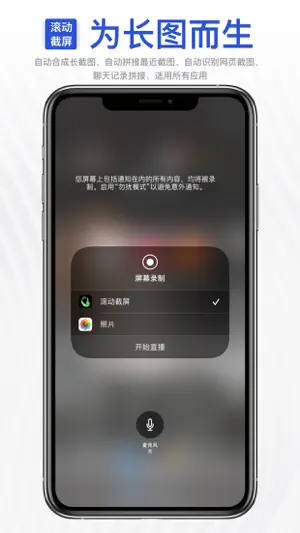


About Auto Screenshots Stitch Tailor
With this software, you can easily capture content that extends beyond a single screen. Here are the simple steps: **Preparation:** OPEN Settings; select Control Center; ensure the Screen Recording option has been added: **Steps:** 1. Prepare the content you want to capture, ensuring that dynamically loaded content is fully loaded. 2. Pull down the control center, long-press the screen recording button. 3. Choose the "Tailor" option, then click on start recording. 4. Return to the content page you want to capture before the countdown ends. 5. When the recording button is illuminated, start scrolling through the page. 6. Lift your finger from the screen at the desired endpoint for recording and wait for 3 seconds. 7. After 3 seconds, a pop-up window will appear, click on "Go to the app." Congratulations, you have completed the screenshot operation! The popularity of social media and instant messaging applications has made people more eager to share their experiences and interactive content. However, the limitations of capturing a single screenshot can be frustrating in situations where a large amount of information or lengthy conversations need to be showcased. This is where the importance of scrolling screenshots comes into play. Scrolling screenshots not only capture the entire content within an application or webpage but also integrate these fragments into a single, comprehensive long image, providing you and others with a more holistic perspective. Whether you want to share an exciting WeChat conversation, a lengthy article from a WeChat official account, interesting content from Weibo, or in-depth Q&A from Zhihu, scrolling screenshots can easily fulfill your needs. Imagine you're reading a long article, and you want to share the key points with others. With scrolling screenshots, all you need to do is gently swipe the screen, capturing the entire article in one go and generating a detailed and complete long image. This way, you can communicate with others in a more engaging manner, without requiring them to go through the hassle of paging through the content. The application of scrolling screenshots is vast. Whether you're browsing through friends' updates on Facebook, engaging in group chats on WhatsApp, or reading friends' posts on WeChat Moments, scrolling screenshots can help you capture all the content at once, showcasing more details and context, making your shares more persuasive and impactful. Furthermore, scrolling screenshots bring convenience to bloggers, marketers, and content creators. Whether you're posting a series of interesting pictures on Weibo or showcasing a continuous video on Instagram, using scrolling screenshot technology can seamlessly merge them into a visually striking long image, attracting more attention and interaction to your content. In summary, scrolling screenshot technology is a powerful and practical tool that helps us present a more comprehensive view when sharing information. It not only simplifies the process of taking screenshots but also provides more ways to display content, allowing us to share our experiences and insights with others in a more vivid and precise manner. No more worries about the hassle of stitching screenshots together—try using scrolling screenshots and make your shares more remarkable and eye-catching!
Ratings & reviews
3.6
143 ratings
What’s new
Version 2.5.1 · Updated August 26, 2026
This update: - Introduces a new stitching algorithm with much higher accuracy, reducing the need for manual adjustments. - Optimizes the long screenshot algorithm for iPad in portrait mode. - Improves results for small text and low-contrast screenshots, with better support for long screenshots of Xiaohongshu and Douyin comment sections. - If the old algorithm works better for your workflow, you can switch back in Preferences. - Improves PDF to image conversion and fixes an issue where image content could overlap. - Refines a few details for a better overall experience. About iOS 18 and later: On some devices, S.Tailor may not appear, or may not be selectable, when you long-press the Screen Recording button. This is a system issue. You can try: 1. Remove Screen Recording from Control Center, then add it again. 2. Record a short clip with the system Photos option, then long-press Screen Recording and choose S.Tailor again. 3. If it still does not work, restart the device. In rare cases, the beginning or end of a long screenshot may be missing. This is usually caused by dropped frames during system screen recording. If it happens, record the content as a video with the system Photos option, then use Video to Long Image in S.Tailor to create the long screenshot.
App privacy
The developer, Dehui Chengzhen, reported these privacy practices to Apple.
Data Used to Track You
The following data may be used to track you across apps and websites owned by other companies:
- Location: Precise Location
- Identifiers: User ID, Device ID
- Usage Data: Advertising Data
- Diagnostics: Crash Data, Performance Data
- Other Data: Other Data Types
Data Linked to You
The following data, which may be collected and linked to your identity, may be used for the following purposes:
- Location: Precise Location
- Identifiers: User ID, Device ID
- Usage Data: Advertising Data
- Other Data: Other Data Types
Used for: Third-Party Advertising, Developer’s Advertising or Marketing, Analytics, Product Personalization, App Functionality, Other Purposes
Data Not Linked to You
The following data, which may be collected but is not linked to your identity, may be used for the following purposes:
- Diagnostics: Crash Data, Performance Data
Used for: Third-Party Advertising, Analytics, App Functionality, Other Purposes
Alternatives to Auto Screenshots Stitch Tailor
Looking for apps like Auto Screenshots Stitch Tailor? Here are 6 similar apps on the App Store. The highest rated is Pudding Scan (4.9/5), and all 6 are free to download.
-
 StitchPics-Stitch Screenshots
4.8
StitchPics-Stitch Screenshots
4.8
-
 小黑盒加速器
2.5
小黑盒加速器
2.5
-
 Zeta Stitch - Long Screenshots
4.7
Zeta Stitch - Long Screenshots
4.7
-
 AI Chat - Ask Bot Assistant
4.8
AI Chat - Ask Bot Assistant
4.8
-
 塔罗牌-星座运势情感事业AI占卜测测
4.1
塔罗牌-星座运势情感事业AI占卜测测
4.1
-
 Pudding Scan
4.9
Pudding Scan
4.9
| App | Rating | Price | Last updated | Compare |
|---|---|---|---|---|
| Auto Screenshots Stitch Tailor | 3.6 / 5 (143 ratings) | Free | August 26, 2026 | |
| StitchPics-Stitch Screenshots | 4.8 / 5 (2,053) | Free | Dec 2, 2024 | Compare |
| 小黑盒加速器 | 2.5 / 5 (70) | Free | Jul 2, 2026 | Compare |
| Zeta Stitch - Long Screenshots | 4.7 / 5 (371) | Free | Sep 4, 2026 | Compare |
| AI Chat - Ask Bot Assistant | 4.8 / 5 (1,877) | Free | Oct 5, 2026 | Compare |
| 塔罗牌-星座运势情感事业AI占卜测测 | 4.1 / 5 (11) | Free | May 20, 2026 | Compare |
| Pudding Scan | 4.9 / 5 (211) | Free | Sep 28, 2026 | Compare |