Dock Orientation Rotatorlator
Auto-set screen orientation when you plug in, dock, or unplug. Open Source.
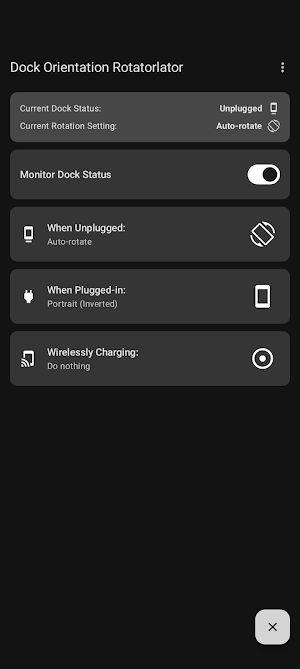
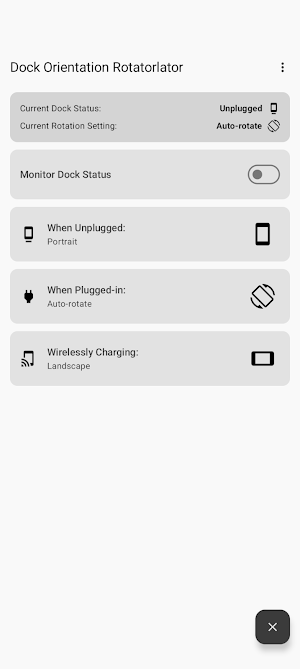
About Dock Orientation Rotatorlator
Put your phone in the car dock and it unlocks to landscape. Take it off the charger at bedtime and it locks back to portrait. No wake, no swipe, no tap, no swipe again — it just happens.
Dock Orientation Rotatorlator watches one thing: whether your phone is charging. When that changes, it applies the rotation setting you chose for that state. That's the whole app.
CHOOSE WHAT EACH POWER STATE DOES
There are three power states, and each one gets its own independent setting:
• Unplugged — nothing connected, running on battery
• Plugged in — USB cable connected, or sitting in a dock
• Wirelessly charging — on a charging pad (hide this one if your phone doesn't do it)
For each state, pick one of six rotation modes:
• Do nothing — leave the rotation setting exactly as it is
• Portrait — lock upright
• Portrait (Inverted) — lock upside-down
• Landscape — lock sideways
• Landscape (Inverted) — lock sideways, the other way
• Auto-rotate — unlock rotation and let the phone follow gravity
Tap a card to cycle it through the six modes.
THE SETUP MOST PEOPLE WANT
Unplugged → Portrait, Plugged in → Auto-rotate.
Your phone stays locked upright in your pocket and in bed, and the moment it hits the car dock or the desk stand it's free to rotate. Unplug it and it snaps straight back to portrait.
Other combinations that make sense:
• Plugged in → Landscape, for a dock that is always horizontal — a car mount, a kitchen stand — where you want landscape no matter how the phone is sitting.
• Wirelessly charging → Landscape, Unplugged → Do nothing, for a bedside pad that turns the phone into a clock, with no opinion about rotation the rest of the time.
• Landscape (Inverted), for docks where the charging port is on the "wrong" side and the phone ends up upside-down.
• Everything → Do nothing except one state. The app only acts on states you've given a mode to, so it's perfectly reasonable to configure just one.
WORTH KNOWING BEFORE YOU INSTALL
"Inverted" is relative to your device's natural orientation. A phone is naturally portrait; a tablet may be naturally landscape. The app works out which, so "Landscape" means the same thing to you on either.
Not every app honours a landscape lock. If an app is built portrait-only it stays portrait, whatever the system rotation setting says. Quick test: turn on auto-rotate and hold your phone sideways in that app — if it doesn't rotate on its own, this app can't make it.
Monitoring needs a permanent notification. Android only lets an app watch power events continuously if it runs a foreground service, and those must show a notification. It's set to the lowest priority so it sits silently at the bottom of the shade, and it carries a Stop Monitoring button. Nothing runs after you switch monitoring off.
The permission is an unusual one. Changing the rotation lock is a system setting, so Android requires "Modify system settings" — a special access grant you flip in Settings rather than a normal pop-up. The app asks once, on first run.
Nothing leaves your phone. No network permission, no analytics, no accounts, no ads.
REBUILT FOR 2026
This started life in 2018 as an over-engineered excuse to play with Animated Vector Drawables — the rotation-mode button doesn't just swap icons, it morphs between them. That's still the best part of it.
It has now been rebuilt from the inside out: Kotlin and Jetpack Compose, Material You theming that follows your wallpaper, a proper dark theme, a themed (monochrome) icon, and vector artwork throughout — no bitmaps left. The hand-drawn animations survived intact.
Free, no ads, no tracking. Source code is on GitHub — there's a link in the app's menu.
Similar Apps
Touch Screen Test
Quick tests to assess the functionality of a smartphone touchscreen.
StandBy Mode: Clock & Widgets
iOS StandBy Mode for Android: Customizable Desk Clock to help you stay focused.
Shortcut Maker
Simple app to create shortcut for anything you want.
True Edge: Edge Lighting & AOD
Notification light & edge lighting Always On Display (AOD). Battery friendly!
Spatial Touch™ - Air Gestures
Control your phone without touching the screen!

Widgeet-Color Widgets(Widget)
All-in-one widgets: clock, photos, calendar & music—customize your home screen
