

Quick Restore - File & Video
Tools Contains ads
Quick Restore — Recover Lost Photos, Videos & More
- Downloads
- 10+
- on Google Play
- Price
- Free
- No in-app purchases
- Updated
- Sep 18
- 2026 · v1.0.1
Screenshots


About Quick Restore - File & Video
Quick Restore File & Video helps you recover photos, videos, and other files you have accidentally deleted from your device, and clean up redundant files that are taking up space. Once a scan is complete, the app tells you exactly how many files can be recovered and organizes everything into clear categories — so you can preview, select, and restore the content you actually need.
Photo Recovery
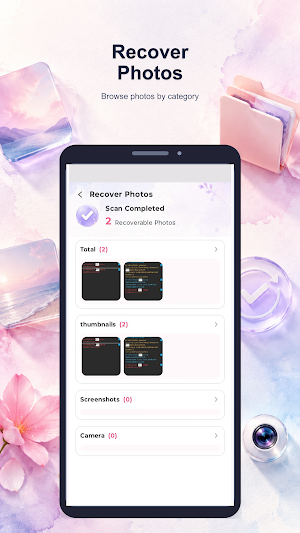
The Photo Recovery tab sorts recovered images into four categories: Total, Thumbnails, Screenshots, and Camera. Each category shows the number of files found, and images are displayed as thumbnails so you can preview them before restoring. Just tap the circle in the top-right corner of a thumbnail to select the photos you want, then restore them back to your device.
Video Recovery
The Video Recovery tab groups recovered clips by source — Total, Camera, Download, Browser, and Others. Each category shows the file count and a thumbnail preview that you can tap to play. Select the videos you want and restore them in a single tap.
Other File Recovery
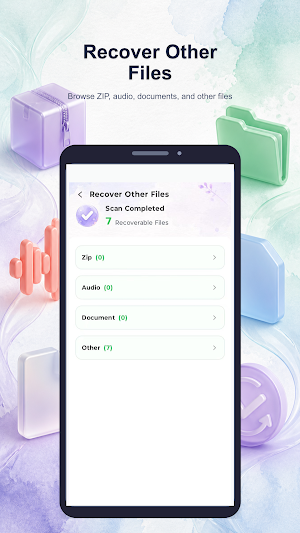
The Other File Recovery tab covers file types beyond photos and videos: ZIP, Audio, Document, and Other. Each category shows the number of files found. Tap a category to open it and view the files inside, select what you need, and restore it to your device — so no important file gets left behind.
Restored Files
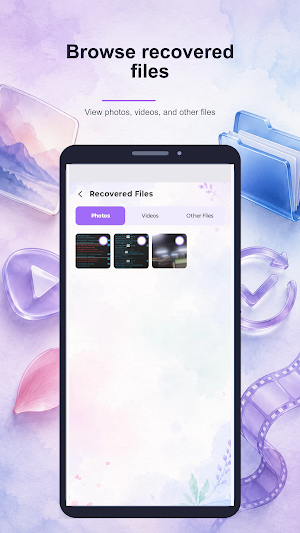
Once files have been successfully restored, the app displays the content you have already recovered. Using the Photos, Videos, and Other Files tabs, you can browse everything you have restored by type.
Redundant Files
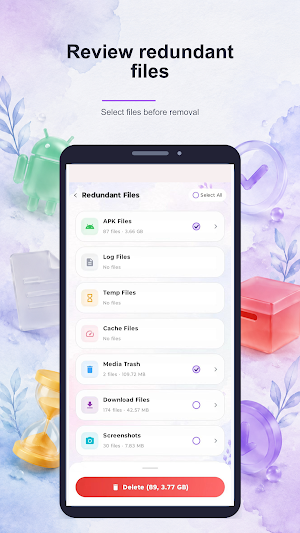
The Redundant Files screen identifies files that may be taking up space on your device — APK Files, Log Files, Temp Files, Cache Files, Media Trash, Download Files, and Screenshots. Each group is listed with its file count and total size, so you can see exactly what is using up your storage. Use the selection circles to choose the groups you want to act on: delete the files you no longer need, or simply keep the ones you want to hold on to. The Delete button at the bottom shows a running count and total size of everything you have selected, and nothing is removed until you confirm.
The categories, files, and sizes you see depend on what is actually stored on your device. Please review the items displayed before taking any action.
Photo Recovery
The Photo Recovery tab sorts recovered images into four categories: Total, Thumbnails, Screenshots, and Camera. Each category shows the number of files found, and images are displayed as thumbnails so you can preview them before restoring. Just tap the circle in the top-right corner of a thumbnail to select the photos you want, then restore them back to your device.
Video Recovery
The Video Recovery tab groups recovered clips by source — Total, Camera, Download, Browser, and Others. Each category shows the file count and a thumbnail preview that you can tap to play. Select the videos you want and restore them in a single tap.
Other File Recovery
The Other File Recovery tab covers file types beyond photos and videos: ZIP, Audio, Document, and Other. Each category shows the number of files found. Tap a category to open it and view the files inside, select what you need, and restore it to your device — so no important file gets left behind.
Restored Files
Once files have been successfully restored, the app displays the content you have already recovered. Using the Photos, Videos, and Other Files tabs, you can browse everything you have restored by type.
Redundant Files
The Redundant Files screen identifies files that may be taking up space on your device — APK Files, Log Files, Temp Files, Cache Files, Media Trash, Download Files, and Screenshots. Each group is listed with its file count and total size, so you can see exactly what is using up your storage. Use the selection circles to choose the groups you want to act on: delete the files you no longer need, or simply keep the ones you want to hold on to. The Delete button at the bottom shows a running count and total size of everything you have selected, and nothing is removed until you confirm.
The categories, files, and sizes you see depend on what is actually stored on your device. Please review the items displayed before taking any action.
Alternatives to Quick Restore - File & Video
Looking for apps like Quick Restore - File & Video? Here are 2 similar Android apps on Google Play. The highest rated is Junk Cleaner Security (4.8/5), and all 2 are free to download.


| App | Rating | Price | Installs | Last updated | Compare |
|---|---|---|---|---|---|
| Quick Restore - File & Video | – | Free | 10+ | Sep 18, 2026 | |
| Junk Cleaner Security | 4.8 / 5 | Free | 100,000+ | Sep 4, 2026 | Compare |
| QuickDL Browser | 4.6 / 5 | Free | 1,000,000+ | – | Compare |