

Pibook: Organize & Edit Photos
8CO Technology Co., Ltd. Photo & Video iPhoneiPadiPod touch
Pibook: Organize & Edit Photos is a free Photo & Video app for iPhone and iPad by 8CO Technology Co., Ltd. Requires iOS 15.5. Updated October 14, 2026.
- Price
- Free
- on the App Store
- Size
- 151 MB
- Age 4+
- Updated
- Oct 14
- 2026 · v1.4.1
Screenshots

About Pibook: Organize & Edit Photos
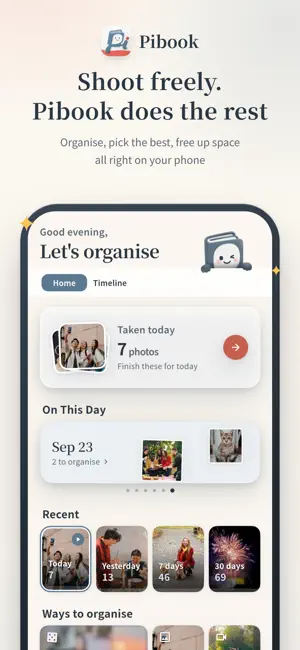
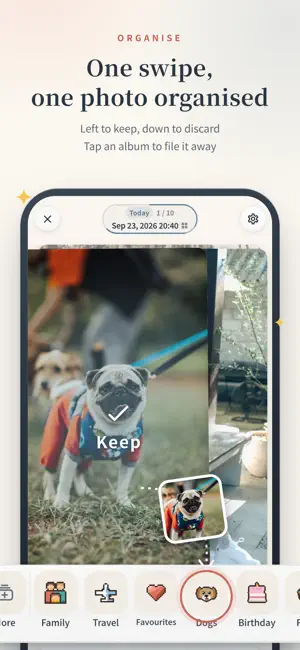
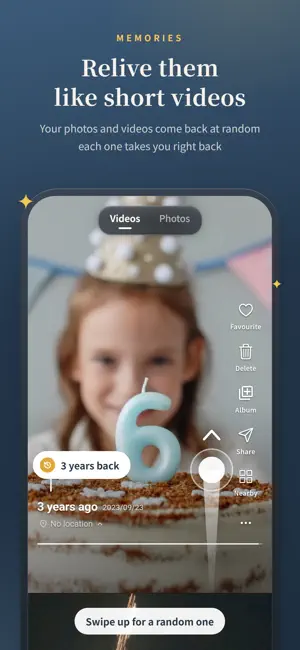
Thousands of photos, and not one of them findable. Storage is nearly full, you know you should deal with it, and every time you open the gallery you close it again. Pibook turns "sort the whole library" into one photo, one decision. One swipe sorts one photo, and it looks after the small annoyances that come with sorting. KEY FEATURES - Sorted albums need no redoing, even for new photos - Compress what you keep - Edit while organising, then share - Custom album icons - Organise from any Gallery photo ONE SWIPE, ONE PHOTO SORTED Photos come up one at a time. Swipe left to keep, down to discard. Spot one worth filing? Tap an album at the bottom and it's put away without leaving the screen. Album icons are yours to set, so sorting is clear at a glance. Discarded photos go to a deletion queue first, and nothing is really deleted until you say so. ALBUMS YOU'VE ALREADY SORTED STAY SORTED If you've already filed photos into albums of your own, there's no need to go through them again. The guide on first launch lists your albums. Tick the ones that are already organised and their photos count as "keep" straight away, including any you add later, so you're never asked to sort them again. These photos don't use your daily organising limit, and you can change the ticked albums in Settings at any time. EDIT AS YOU SORT, THEN SHARE Think a photo could look better? Edit it right there, without leaving and hunting for it again. Crop and straighten, auto adjust, light and colour, and filters are all there. Overwrite the original or save a copy, and revert if you change your mind. By the time you finish sorting, the photos are ready to share. Pick a style first: Original, Film date, Signature, That day or Logo. KEPT PHOTOS CAN BE COMPRESSED STRAIGHT AWAY A kept photo is more than a photo you didn't delete. The end-of-session screen shows roughly how much space this round could save, and one tap adds them to compression. It runs in the background, so you can start your next round of organising right away. Videos eat the most space and shed it the fastest, and a single clip often gives back hundreds of megabytes. You see the saving before you start. Compressed photos keep their favourites, albums, capture date and organising marks. ORGANISING AND THE GALLERY WORK TOGETHER Pibook's gallery marks every tile with its sorting state and how many albums it sits in, so you can see at a glance which photos haven't been filed. Want to start from a particular photo? Open it in the gallery and carry on organising from there. Long-press any photo to file it straight away. THE BEST OF EVERY BURST, ALREADY PICKED Five shots of the same moment, all still there. Pibook groups them, picks the sharpest and best-lit one, and lets you clear the rest in one go. Not sure? Open the group full screen and swipe left and right to compare before you decide. Duplicates and near-duplicates go one group at a time. THE VIDEOS AND PHOTOS YOU TOOK COME BACK TO FIND YOU Memories plays the videos on your phone like shorts: flick up for the next one, double-tap to favourite. Photos work the same way. Curious what else you shot that day? One tap jumps to that spot in your library. On the home screen, On This Day shows what you were shooting on this date in years past. PHOTOS NEVER LEAVE YOUR PHONE Analysis, grouping and compression all run on this device. Nothing is uploaded anywhere, and none of it needs a connection. Signing in is optional, and it backs up only the record of the decisions you made. The photos themselves stay on your phone. Reminders are scheduled locally too. Available in English, Japanese, Korean, Traditional Chinese and Simplified Chinese. Terms of Use: https://pibook.app/terms Privacy Policy: https://pibook.app/privacy Support: https://pibook.app/support
What’s new
Version 1.4.1 · Updated October 14, 2026
【Memories, your way】 • Choose how to relive them from the top right: random, oldest first, or newest first • A new timeline ruler, one notch per month: want that summer? Slide there. While playing at random, tap "Start from here" and it carries on in time order from that spot. At the end, "Travel to a day" lets you pick up from another point in time • Pick a source, all albums or just one: only want the trip album? Done • Spot a video that takes up a lot of space? Compress that single one right in Memories, no detour. Tap delete and you're offered compression instead, so you free space and keep the memory. The delete button is now called "Slim down" • The buttons on the right now use the same soft, rounded icons as the organising cards, so everything feels like one app 【Photo details and editing】 • In the gallery, the Similar photos comparison and full-screen Compress, tap the date at the top or swipe up to see a photo's details without leaving • Capture time or place wrong? Edit it right there. A corrected time also decides where the photo sits on the timeline, so it lands on the right day 【Similar photos and Compression】 • Long-press an album or folder in the gallery to jump straight into Similar photos or Compress for just those albums, with no need to set a filter first. A folder covers every album inside it • Your filters stay put after you restart the app, for Similar photos and Compress alike • Full-screen view in Similar photos and Compress now has a "⋯" menu at the top right, so favouriting, sharing, copying and adding to an album work just like in the gallery • Drag the floating ball to "Stop" or "Cancel all" when you change your mind. Cancel all removes the compressed copies and leaves your originals alone, and the free limit it used is given back • "Kept after organising" is now one switch card: turn it on to see only the photos you kept and haven't compressed yet, with roughly how much you'd save • Photos being compressed are marked on their gallery tiles • After a batch, you land back where you were in the list, ready to pick the next one 【Albums】 • One "Pick from all albums" menu everywhere: see how many items each album holds and tap into folders level by level, in Memories, Similar photos and Compress alike • Dragging an album is easier to control: drop it beside another album to reorder, or onto a folder to put it inside • Pinned albums on the organising album rail can be long-pressed and dragged into the order you like • Albums kept in folders also show under "Added" on the album rail, with a folder badge before the name • Albums on the organising home screen show at most 12 when collapsed, so a long list never takes over 【Organising and Gallery】 • Pinch in on a photo at its original size to close the organising screen • Browse mode in the gallery turns pages smoothly without vibration, like flipping through an album. Pinch in to go back to the gallery • Opened a photo from the gallery in a range you've fully organised? "Start organising" now shows what you organised before instead of coming up empty • When a photo goes from blurry to sharp, it no longer jumps or rescales 【Other improvements】 • The phone stays cooler over long sessions, and libraries with lots of photos feel steadier and smoother • The gallery loads faster when you scroll back or reopen the app • Video no longer shudders when you open or close a menu over it • One tap now gives one vibration, for a cleaner feel • However you delete a photo, it now counts towards the space you've freed
App privacy
The developer, 8CO Technology Co., Ltd., reported these privacy practices to Apple.
Data Linked to You
The following data, which may be collected and linked to your identity, may be used for the following purposes:
- Location: Coarse Location
- Contact Info: Email Address, Name
- User Content: Other User Content
- Identifiers: User ID
- Usage Data: Product Interaction
- Diagnostics: Crash Data, Performance Data
- Purchases: Purchase History
- Other Data: Other Data Types
Used for: Analytics, App Functionality
Alternatives to Pibook: Organize & Edit Photos
Looking for apps like Pibook: Organize & Edit Photos? Here are 6 similar apps on the App Store.
-
 Glint - 相片斷捨離
-
 Photodesk: Photo Cleanup
-
 RilaCam: Retro Digital Cam
-
 Sukushori: Screenshot Sorter
-
 Reel Prompter
-
 Eternity Studio Pro: RAW
| App | Rating | Price | Last updated | Compare |
|---|---|---|---|---|
| Pibook: Organize & Edit Photos | – | Free | October 14, 2026 | |
| Glint - 相片斷捨離 | – | Free | Sep 21, 2026 | Compare |
| Photodesk: Photo Cleanup | – | Free | Sep 27, 2026 | Compare |
| RilaCam: Retro Digital Cam | – | Free | Oct 13, 2026 | Compare |
| Sukushori: Screenshot Sorter | – | Free | Sep 18, 2026 | Compare |
| Reel Prompter | – | Free | Oct 3, 2026 | Compare |
| Eternity Studio Pro: RAW | – | Free | Oct 12, 2026 | Compare |