

Photo Cleaner: Swipe Quick
Leadiser Limited Photo & Video iPhoneiPadiPod touch
Photo Cleaner: Swipe Quick is a free Photo & Video app for iPhone and iPad by Leadiser Limited. Rated 5.0/5 from 1 ratings. Requires iOS 15.1.
- Rating
- 5.0
- 1 ratings
- Price
- Free
- on the App Store
- Size
- 51 MB
- Age 4+
- Updated
- Sep 21
- 2026 · v2.3.0
Screenshots

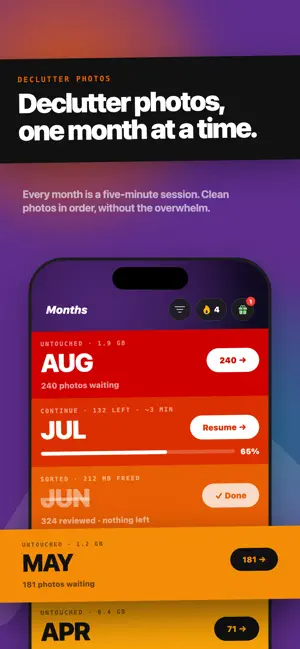

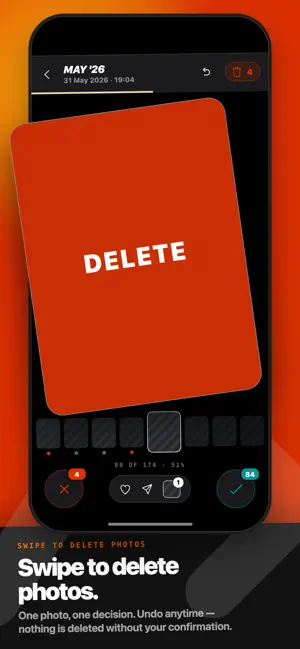
About Photo Cleaner: Swipe Quick
Photo cleaner for your camera roll. Swipe right to keep, left to delete. Free up storage in minutes. Declutter thousands of photos without tapping checkboxes or scrolling endlessly. Swipe to clean — one photo at a time, full screen, instant decisions Duplicate photo finder — spot repeated and near-identical shots, delete in bulk Month by month — work through your camera roll chronologically On This Day — resurface memories from past years while you clean Collections — sort screenshots, videos, Live Photos and favourites separately 100% Private: Swipe Quick works entirely on your device — your photos are never sent anywhere. Every deletion is confirmed before it happens. Undo any decision at any time. Photos go to Recently Deleted, not gone forever. FAQs 1. How do you free up storage on an iPhone? You can free up storage on an iPhone by deleting whatever holds the most megabytes and then emptying Recently Deleted, because a deleted photo keeps occupying space until that album is cleared. You can also use a camera roll cleaner app like Swipe Quick to work through it one photo at a time instead of scrolling. 2. How do you delete thousands of photos on an iPhone? You can delete thousands of photos on an iPhone either by drag-selecting in the Photos app, tapping Select and then dragging a finger across the grid, or by working through the library in smaller sessions using a camera roll cleaner app. One of the swipe-and-delete apps built for that second job is Swipe Quick. It splits the camera roll into months, albums and duplicate groups, so a library of thirty thousand photos becomes a series of piles that each finish in one sitting. 3. How do you delete duplicate photos on an iPhone? You can delete duplicate photos on an iPhone with the built-in Duplicates album, or with a duplicate photo cleaner app like Swipe Quick if you want more of them found. In the Photos app, tap Collections, scroll to Utilities and open Duplicates, then use Merge to keep one copy of each group. Detection runs only while the iPhone is locked and connected to power, so a large library can take a few days to finish indexing. 4. How do you delete screenshots on an iPhone in bulk? You can delete screenshots on an iPhone in bulk either through the Photos app or with a camera roll cleaner app like Swipe Quick. In Photos, open Albums, scroll to Media Types and tap Screenshots, then use Select and drag across the grid. That works when you already know you want the whole lot gone. When you still need to look at each one, a swipe-based app is faster. 5. What should you delete first to free up storage? You should delete whatever holds the most megabytes first, which is usually long videos and duplicate groups rather than single photos. Screenshots come next, because they build up in the largest numbers even though each one is small. Emptying Recently Deleted afterwards is what actually returns the space. 6. Do camera roll cleaning apps upload your photos to a server? Not all camera roll cleaning apps upload your photos to a server, but some do, and the category is inconsistent enough that it is worth checking. The app's own privacy policy states it, and the App Store listing carries a data disclosure alongside it. Swipe Quick uploads nothing. It asks iOS for permission to read your library and does all of the work locally, so no photo or video is ever copied to a server. 7. What is Swipe Quick? Swipe Quick is a free photo cleaner app for the iPhone camera roll. You swipe right to keep a photo and left to mark it for deletion, working through your library month by month, by album, or by duplicate group. It finds duplicate and near-identical shots on the device, needs no account, and never uploads a photo anywhere. Nothing is deleted until you confirm. Terms of Use: https://www.apple.com/legal/internet-services/itunes/dev/stdeula/
What’s new
Version 2.3.0 · Updated September 21, 2026
Performance improvements and bug fixes.
App privacy
The developer, Leadiser Limited, reported these privacy practices to Apple.
Data Used to Track You
The following data may be used to track you across apps and websites owned by other companies:
- Identifiers: Device ID
- Usage Data: Product Interaction, Advertising Data
Data Linked to You
The following data, which may be collected and linked to your identity, may be used for the following purposes:
- Contact Info: Email Address
Used for: App Functionality
Data Not Linked to You
The following data, which may be collected but is not linked to your identity, may be used for the following purposes:
- Identifiers: Device ID
- Usage Data: Product Interaction, Advertising Data
- Diagnostics: Crash Data, Performance Data
Used for: Third-Party Advertising, Developer’s Advertising or Marketing, Analytics, App Functionality
Alternatives to Photo Cleaner: Swipe Quick
Looking for apps like Photo Cleaner: Swipe Quick? Here are 6 similar apps on the App Store. The highest rated is QuickBye: Your Photo Cleanup (5.0/5), and 5 of the 6 are free to download.
-
 QuickBye: Your Photo Cleanup
5.0
-
 Clearoll: Screenshot Cleaner
-
 Gleam: Swipe to Delete Photos
1.0
-
 Sketch Effect Video
-
 Deletely: Photo Cleaner
5.0
-
 SwipeSort: Photo Cleaner
| App | Rating | Price | Last updated | Compare |
|---|---|---|---|---|
| Photo Cleaner: Swipe Quick | 5.0 / 5 (1 rating) | Free | September 21, 2026 | |
| QuickBye: Your Photo Cleanup | 5.0 / 5 (2) | Free | Nov 7, 2025 | Compare |
| Clearoll: Screenshot Cleaner | – | Free | Oct 18, 2026 | Compare |
| Gleam: Swipe to Delete Photos | 1.0 / 5 (1) | Free | Oct 24, 2026 | Compare |
| Sketch Effect Video | – | 0.99 USD | Apr 27, 2024 | Compare |
| Deletely: Photo Cleaner | 5.0 / 5 (1) | Free | Oct 24, 2026 | Compare |
| SwipeSort: Photo Cleaner | – | Free | Oct 16, 2026 | Compare |