

GlassOut
Artur Kumszczynski Entertainment iPhoneiPadiPod touch
GlassOut is a free Entertainment app for iPhone and iPad by Artur Kumszczynski. Rated 4.7/5 from 3 ratings. Requires iOS 16.4. Updated October 9, 2026.
- Rating
- 4.7
- 3 ratings
- Price
- Free
- on the App Store
- Size
- 42 MB
- Age 4+
- Updated
- Oct 9
- 2026 · v1.16.0
Screenshots


About GlassOut
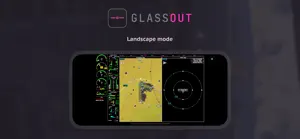
GlassOut turns your iPhone or iPad into an external instrument display for Microsoft Flight Simulator 2024 and 2020. Pair the app with the GlassOut Engine running on your flight sim PC, and any panel — PFD, MFD, EICAS, FMC, radio stack, standby instruments — streams straight to your device over your local Wi-Fi. No capture cards, no screen-mirroring lag, no manual pop-outs. GlassOut pulls panels directly from the simulator's rendering pipeline, so what you see on your device matches the sim pixel-for-pixel. Perfect for: - Home cockpit builders who want a dedicated tablet for each instrument - Virtual pilots who run out of monitor space during IFR approaches - Anyone who'd rather see their PFD on the external display HOW IT WORKS 1. Install the GlassOut desktop app on your flight sim PC (glassout.flyingart.dev). 2. Launch Microsoft Flight Simulator and start a flight. 3. Open GlassOut on your iPhone or iPad while on the same Wi-Fi network. The app auto-discovers your PC, lists every available panels, and renders the one you pick full-screen. FEATURES - Auto-discovery of the GlassOut Engine on your local network (Bonjour / mDNS) - Manual IP entry as a fallback - Full-screen, locked panel viewer — no accidental swipes during flight - Screen stays awake while a panel is active, sleeps normally in menus - Works in landscape and portrait, iPhone and iPad REQUIREMENTS - A Windows PC running Microsoft Flight Simulator 2024 or 2020 - The GlassOut Engine installed on that PC - Your phone/tablet and PC on the same Wi-Fi network GlassOut is made by a flight-sim enthusiast for flight-sim enthusiasts. Questions, bug reports, or feature requests: [email protected]
What’s new
Version 1.16.0 · Updated October 9, 2026
**New** - Panel switcher: in the viewer, pull up from the bottom edge to open a row of panels, fragments and templates. Tap one to change the screen. You do not have to go back to the list. - Settings for the switcher: **Pull up to switch** and **Show switch hint** (both on by default). The hint shows a small handle at the bottom edge. Settings shows a GIF and an image that explain the two settings. - Keyboard for sim text fields: when you tap a text field in a panel (for example, in an EFB), the keyboard of the device opens. The text you type goes to the field in the sim. **Enter** sends the field. New setting: **Keyboard for text fields** (on by default). - New setting: **Show typing box**. Turn it off to hide the text box above the keyboard. The keyboard still works. - Touch scroll and pinch zoom: drag with one finger to scroll lists in EFB pages (for example, approaches and charts). Pinch with two fingers to zoom maps and charts. - New setting: **Hide status bar** (off by default). It hides the status bar of the phone while a panel is open. - Templates can now show a custom background image on mobile. **Fixes** - Taps near the top and bottom edges of the viewer now go to the panel. Before, the swipe areas at the edges stopped these taps (for example, the Quick Settings button in the FlyByWire EFB status bar, or the top combobox of the A380 MFD). Swipes work as before. - iPad: the multitasking menu at the top of the screen cannot split the viewer into Split View or Slide Over now. - iPad: a panel does not become approximately one third of its size now after you go to a different app and come back. - A slow device (for example, a 30 fps phone) that shows the same panel as a fast PC now gets its full frame rate. Before, it could drop to approximately 3 fps. - The app does not show "Can't reach engine" now while the engine is running. A connection that stopped after a heartbeat timeout now reconnects. Connection attempts now stop after 5 seconds and the app tries again.
Play today's Threadline puzzle
Draw one line through every cell, visiting the numbers in order. A free daily puzzle from Fiplay, same board for everyone. It plays right here, no download.
App privacy
The developer, Artur Kumszczynski, reported these privacy practices to Apple.
Data Not Linked to You
The following data, which may be collected but is not linked to your identity, may be used for the following purposes:
- Usage Data: Product Interaction
- Diagnostics: Crash Data, Performance Data, Other Diagnostic Data
Used for: Analytics
Alternatives to GlassOut
Looking for apps like GlassOut? Here are 6 similar apps on the App Store. The highest rated is Flight Sim Tracker (5.0/5), and all 6 are free to download.
-
 Flight Deck FMS
4.2
-
 Flight Deck ONE
3.0
-
 Flight Sim Tracker
5.0
-
 Razer PC Remote Play
4.7
-
 Moonfin
4.5
-
 Channels: Whole Home DVR
4.7
| App | Rating | Price | Last updated | Compare |
|---|---|---|---|---|
| GlassOut | 4.7 / 5 (3 ratings) | Free | October 9, 2026 | |
| Flight Deck FMS | 4.2 / 5 (5) | Free | Sep 25, 2026 | Compare |
| Flight Deck ONE | 3.0 / 5 (2) | Free | Sep 25, 2026 | Compare |
| Flight Sim Tracker | 5.0 / 5 (1) | Free | Mar 18, 2026 | Compare |
| Razer PC Remote Play | 4.7 / 5 (209) | Free | Sep 1, 2026 | Compare |
| Moonfin | 4.5 / 5 (81) | Free | Aug 28, 2026 | Compare |
| Channels: Whole Home DVR | 4.7 / 5 (616) | Free | Sep 15, 2026 | Compare |
Compare GlassOut with the top alternatives: ratings, updates, ASO score and keyword gaps →