

NiblyNotes
PC-Future GmbH Education iPad
NiblyNotes is a free Education app for iPad by PC-Future GmbH. Requires iOS 18.6. Updated October 16, 2026.
- Price
- Free
- on the App Store
- Size
- 20 MB
- Age 4+
- Updated
- Oct 16
- 2026 · v1.0.9
Screenshots


About NiblyNotes
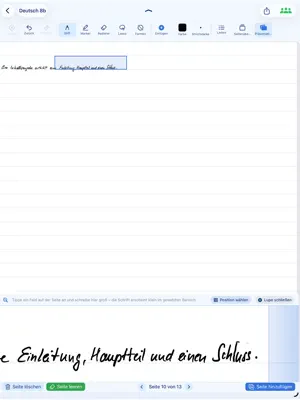
NiblyNotes is the digital exercise book for everyday school life — made in Germany with teachers. Every tool a lesson needs in one app: no subscription, no ads, no tracking. English and German. FREE AND AD-FREE NiblyNotes stays free for at least 5 years. In the supporter area you can buy us a coffee if you like — it unlocks nothing. WRITING AND DRAWING - Pen, fountain pen, pencil, highlighter and laser pointer, many colours and widths, plus two of your own - Lasso to move, scale, rotate and copy, even from book to book - Object eraser for whole strokes, Apple Pencil double-tap switches to it - Shape recognition for line, circle, rectangle, triangle and rhombus; rest the pen briefly and it straightens at once - Lines and arrows whose endpoints stay movable PAPER RULINGS Blank, ruled, 5 mm squares, dot grid, music staves with lyric lines, French Séyès ruling, isometric and dimetric paper to ISO 5456-3 — per page, with a margin left or right. RULER, SET SQUARE AND COMPASS Strokes snap to the edge, tools move and rotate with two fingers, the ruler attaches to the set square. The zoom adjusts so that 5 mm squares and 9 mm lines are exactly that size — check it with a real ruler. TEXT, TABLES AND STICKERS Text boxes with font, size, colour, word-by-word formatting, Scribble, web addresses recognised. Tables to write into with the pen. Stickers cover up answers and reveal them with a tap; next time you open the book they cover again. IMAGES, AUDIO AND VIDEO Photos from library or camera with a photo editor, audio files right on the page, videos embedded cookie-free. SPLIT PAGE A reading pane on the left with a PDF or a second book, the writable page on the right, the divider moves freely. SCANNER AND IMPORT Scan worksheets and blackboards with the iPad camera — multiple pages, black/white or colour, croppable. PDF, Word and PowerPoint become book pages. BOOKS AND PAGES Folders, duplicate books, take pages from other books. Insert, delete or clear pages — all recoverable. Page overview as a sidebar, outline that jumps to a topic. ZOOM WRITING An enlarged writing strip at the bottom — write big, it lands small in the book. CURTAIN, PRESENTATION, FULL SCREEN The curtain reveals a page step by step, on the external display too. When mirroring, presentation mode shows only the page, full screen leaves just a mini toolbar. PRINT, AIRDROP, SAVE AirPrint, AirDrop, save locally as PDF or NiblyNotes file. Teachers can hide the handwritten answer key on export. SCHOOL CLOUDS AND BACKUP BayernCloud Schule, Nextcloud and NetMan for Schools are built in: upload and share, open files straight into a book, daily backup. Local backups password-protected on request. CLASSROOM MODE Put worksheets, single objects or images into the class inbox by QR code and collect submissions — locally over the school Wi-Fi. For devices without NiblyNotes there is a compatibility mode you can switch on: files in the browser. If the Wi-Fi blocks the connection, the inbox runs encrypted via a web server. Can also be linked to BayernCloud Schule. VIEW STUDENTS' WORK Students release pages, the teacher writes notes into them, the class sees the corrections. Encrypted, own school server possible. SHARED BOOKS Work on one book together via iCloud — directly between Apple Accounts, no third-party server. FOR SCHOOL IT Configurable by MDM: preset cloud addresses, fix the language, hide the supporter area. PRIVACY Book contents are stored locally. Cloud connections are optional. Trademarks: Apple, Apple Pencil, iPad, iCloud, AirDrop, AirPrint (Apple Inc.), Word, PowerPoint (Microsoft), Nextcloud (Nextcloud GmbH), NetMan for Schools (H+H Software GmbH). BayernCloud Schule: Free State of Bavaria.
What’s new
Version 1.0.9 · Updated October 16, 2026
Videos on the Projector Videos can now once again be displayed in full-screen mode on the projector. Transfer Mailbox to Space When transferring the mailbox to BayernCloud Spaces, you can now select a subfolder as well. Timer Templates Timers can now be placed directly on a page as timer buttons. This allows you to create a separate timer template for each task. Copy, Cut & Paste Images, text boxes, tables, videos, and audio objects can now be copied or cut using their editing toolbar. A turquoise “Paste” pill then appears in the top-right corner. Tap the X to clear the clipboard. Content can also be pasted using the lasso tool or via “Insert → From Clipboard” – even on other pages or in other notebooks. Videos from mebis and ByCS Videos from the mebis media library and the ByCS learning platform can be inserted just like YouTube videos. Freely available videos play directly in Nibly, including on the projector. Titles, authors, and licenses are suggested automatically. Videos requiring authentication open in the in-app browser and can also be displayed on the projector. These videos can also be added to the mailbox. Cloud & Backup Notebook names containing emojis no longer cause problems when backing up or syncing with BayernCloud Spaces. Missing pages are downloaded automatically. After renaming a notebook, the backup is saved completely again. Files from cloud services such as OneDrive can now be imported more reliably. While a file is loading, Nibly displays a notification with a Cancel option. Templates Frequently used images and drawings can now be saved as templates. There are 20 available slots, and templates can be used in every notebook. You can find them at the top of the Insert menu. Each insertion creates a copy, so later changes to a template do not affect content already placed in a notebook. Templates can be saved using the lasso tool or the image toolbar, and renamed, moved, replaced, or deleted in the template overview. Tasks Each notebook now has its own task list, with optional due dates. Colors indicate urgency: red means due within one day, yellow within three days, green means there is more time, and blue indicates no due date. Nibly reminds you of open tasks when you open a notebook. These reminders can be disabled. The library provides an overview of tasks across all notebooks – ideal for lesson planning and as a digital homework planner. Lesson Timer Start a timer from the Insert menu. It appears below the pills and in a large format on the projector. The timer continues running when you switch notebooks, and its duration can be adjusted afterward. When the time is up, the display flashes red until tapped. An optional sound can be played when the timer ends. Improved Page Navigation When scrolling past the end of a page, part of the previous page can remain visible while you continue writing on the next page. A guide line indicates where the page turn takes place. If you release before reaching it, both pages remain visible. Only one page can be edited at a time; the other is slightly dimmed. Tap the pill on the boundary line to switch the active area. Fixed: Editing Student Notebook Corrections Existing correction annotations are now preserved when you reopen a student page that has already been corrected. You can continue editing your corrections without starting over.
App privacy
The developer, PC-Future GmbH, reported these privacy practices to Apple.
Data Linked to You
The following data, which may be collected and linked to your identity, may be used for the following purposes:
- Contact Info: Name
- Identifiers: User ID
Used for: App Functionality
Alternatives to NiblyNotes
Looking for apps like NiblyNotes? Here are 6 similar apps on the App Store.
-
 FluidNotes – Dein Notizbuch
-
 CastSlate: Whiteboard & Cast
-
 LEIFIphysik
-
 Relution Teacher
-
 Relution Parent
-
 Viana 2
| App | Rating | Price | Last updated | Compare |
|---|---|---|---|---|
| NiblyNotes | – | Free | October 16, 2026 | |
| FluidNotes – Dein Notizbuch | – | Free | Oct 21, 2026 | Compare |
| CastSlate: Whiteboard & Cast | – | Free | Oct 18, 2026 | Compare |
| LEIFIphysik | – | Free | Oct 12, 2026 | Compare |
| Relution Teacher | – | Free | May 5, 2026 | Compare |
| Relution Parent | – | Free | Feb 8, 2026 | Compare |
| Viana 2 | – | Free | Oct 9, 2024 | Compare |
Compare NiblyNotes with the top alternatives: ratings, updates, ASO score and keyword gaps →