

SMB Server - ファイル共有
Maiji Saito Utilities iPhoneiPadiPod touch
SMB Server - ファイル共有 is a free Utilities app for iPhone and iPad by Maiji Saito. Requires iOS 15.6. Updated September 22, 2026.
- Price
- Free
- on the App Store
- Size
- 1 MB
- Age 4+
- Updated
- Sep 22
- 2026 · v1.4
Screenshots

About SMB Server - ファイル共有
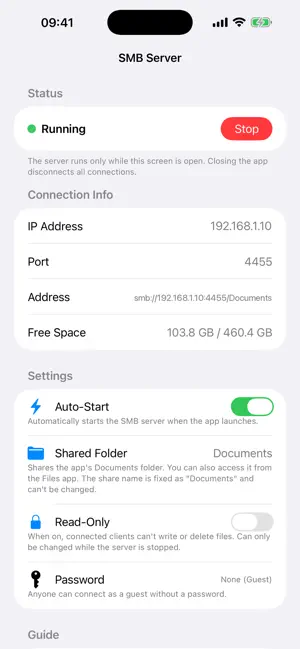
SMB Server turns your iPhone into an SMB (file sharing) server. From a Mac or Windows PC on the same Wi-Fi network, you can open your iPhone's Documents folder directly and copy, move, or delete files. No cables and no cloud required. [Great for] • Getting photos, documents, and music from your computer onto your iPhone without a cable • Quickly pulling files off your iPhone onto your computer • Moving files around at home without the cloud or an account • Handling files the familiar way, from Finder on Mac or File Explorer on Windows [Key Features] • File server supporting SMB2 (connect from Mac, Windows, Linux, and other SMB clients) • Start or stop the server with one tap • Bonjour support: appears automatically in the Network list in Mac Finder • Shows the IP address, port, and connection address (smb://...) you need, right on screen • Guest access, or set a password to restrict who can connect • Read-only mode (blocks writing and deleting from the computer) • Automatically start the server when the app launches • Keeps the screen from auto-locking while the server is running, so connections don't drop • View a log of connections, disconnections, and file operations • Shows the free space available in the shared folder • Open the same Documents folder from the Files app, too • Built-in guide for connecting, plus troubleshooting tips [How to Use] 1. Open the app, tap "Agree and Start", then tap "Start" (If asked to allow access to the local network, choose "Allow") 2. Enter the address shown on screen on your computer (YOUR_IP = the IP address shown in the app) • Mac: In Finder, choose Go, then Connect to Server, and enter smb://YOUR_IP:4455/Documents • Windows: Enter \\YOUR_IP@4455\Documents in the File Explorer address bar • Other SMB clients, such as Linux, can connect too 3. Sign in as a guest, or with the password you set Only this app's Documents folder is shared. The share name is fixed as "Documents". [Can't Connect?] • Make sure your iPhone and computer are on the same Wi-Fi network • Keep the app's screen open on your iPhone • Include the share name (/Documents) and the port number (4455) in the address • Mac Finder keeps a window in its failed state after a sign-in failure. Close the Finder window, then choose "Connect to Server" again. If it still won't connect, delete the old password in Keychain Access [Privacy] • Never connects to the internet. Works only within your local network (Wi-Fi) • Does not collect or transmit personal information, usage data, or file contents • Uses no third-party SDKs of any kind, including ads, analytics, or crash reporting • No account registration or sign-in required • Your Documents folder is shared only while the server is running. When stopped, it cannot be accessed from outside [Notes] • The server runs only while the app's screen is open. Closing the app disconnects all connections • The SMB port number is 4455 (the standard port 445 is not available due to iOS restrictions). You need to specify the port when connecting • With guest access, anyone on the same network can connect. Use it on a trusted network, or set a password
What’s new
Version 1.4 · Updated September 22, 2026
Improved SMB compatibility and stability. - Fixed files and folders not being deleted from some SMB clients (e.g. Linux smbclient / cifs). - Fixed the share list not appearing in some clients. - Fixed folder contents not displaying correctly in some clients. - Minor internal fixes.
App privacy
The developer, Maiji Saito, reported these privacy practices to Apple.
Data Not Collected
The developer does not collect any data from this app.
Alternatives to SMB Server - ファイル共有
Looking for apps like SMB Server - ファイル共有? Here are 6 similar apps on the App Store. The highest rated is Everdisk: Share Photos & Files (5.0/5), and all 6 are free to download.
-
 Easy FTP&SMB Client
-
 Everdisk: Share Photos & Files
5.0
Everdisk: Share Photos & Files
5.0
-
 Fast FTP Server
-
 PicoServer: Wi-Fi File Server
-
 Zwind - WebDAV Server & Player
3.6
Zwind - WebDAV Server & Player
3.6
-
 SmbDAV
2.5
SmbDAV
2.5
| App | Rating | Price | Last updated | Compare |
|---|---|---|---|---|
| SMB Server - ファイル共有 | – | Free | September 22, 2026 | |
| Easy FTP&SMB Client | – | Free | Jun 15, 2026 | Compare |
| Everdisk: Share Photos & Files | 5.0 / 5 (1) | Free | Sep 19, 2026 | Compare |
| Fast FTP Server | – | Free | Sep 19, 2026 | Compare |
| PicoServer: Wi-Fi File Server | – | Free | Aug 28, 2026 | Compare |
| Zwind - WebDAV Server & Player | 3.6 / 5 (11) | Free | Oct 22, 2026 | Compare |
| SmbDAV | 2.5 / 5 (2) | Free | Jun 19, 2024 | Compare |