

OnDeck
JOHN ROBERT PEART Productivity iPhoneiPadiPod touchMac
OnDeck is a free Productivity app for iPhone and iPad by JOHN ROBERT PEART. Requires iOS 26.0. Updated October 24, 2026.
- Price
- Free
- on the App Store
- Size
- 17 MB
- Age 4+
- Updated
- Oct 24
- 2026 · v2.2
Screenshots


About OnDeck
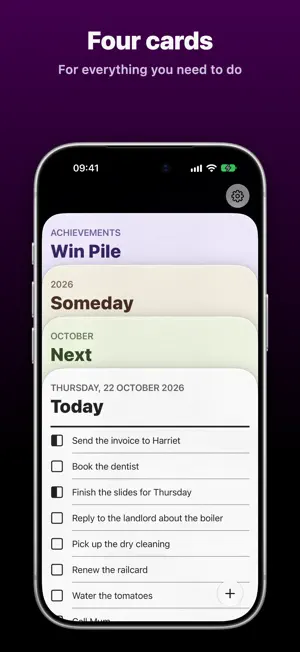
Stop drowning in endless task lists. Start finishing what matters. OnDeck strips away the complexity of traditional to-do apps and gives you just four cards to manage your life: Today, Next, Someday and the Win Pile. THE FOUR-CARD SYSTEM FOR GETTING THINGS DONE • Today: what needs your attention right now • Next: what's coming up soon • Someday: ideas and tasks for the future • Win Pile: everything you've accomplished Tap a card's heading to open it, and pull it down to put it back. The card at the front of the deck works right where it sits: scroll it, tick tasks off, or tap one to edit it. Drag tasks into the order you want, and swipe one to finish it, change its date or delete it. It's task management that works the way your brain does. KNOW WHERE EVERYTHING STANDS Every task has one of four statuses: Not started, In progress, Delegated or Complete. Finish a task, or hand it to someone else, and it's filed in the Win Pile. Need to move a few at once? Choose several tasks and change their status, date or card together. THE WIN PILE Completed tasks don't just disappear. They move to your Win Pile: a record of everything you've accomplished, grouped by the day you finished it. Look back on productive days, and remind yourself how much you're actually getting done. DESIGNED TO STAY OUT OF YOUR WAY No complicated projects. No tags. No priorities within priorities. OnDeck keeps your list up to date so you don't have to: • A task comes onto the Today Card by itself when its date arrives. • Anything left unfinished on Today is carried over to the next day. • Choose how far ahead the Next Card looks, with anything later going to Someday. SYNCS WITH APPLE REMINDERS Your tasks aren't locked inside OnDeck. Each card is a list in the Reminders app, so your tasks sync and back up the way your reminders already do, across all your devices. Tick one off in Reminders, on your Apple Watch or with Siri, and OnDeck keeps up. Your data stays yours, and it's still there if you stop using the app. HOME SCREEN WIDGETS Add OnDeck to your Home Screen in four sizes, with a fifth, taller one on iOS 27. Choose which card to show: Today, Next or Someday. Tap a task in the widget to open it in the app. Or press and hold the app's icon to add a task straight to a card. MAKE IT YOURS • Appearance: System, Light or Dark • Colour palette: Pastel, Greyscale or Sticky note • Typography: Sans serif, Serif or Rounded • Three app icons to choose from READY FOR IPHONE, IPHONE DUO AND IPAD On an iPad, and on the iPhone Duo's inner display, the deck stays on screen with the card you opened beside it. Turn an iPhone on its side and all four cards are on screen at once. OnDeck works in every orientation. ALSO ON THE MAC OnDeck for Mac is on the Mac App Store, with your four cards in a window of their own, a Task menu, keyboard shortcuts, a Dock menu for adding tasks and a widget for the desktop. Your tasks are in Reminders, so they're the same on your iPhone, iPad and Mac. PRIVATE BY DESIGN No accounts, no adverts and no analytics. Your tasks are stored in Apple Reminders and nowhere else. OnDeck is free. There's a tip jar on the Settings Card if you'd like to support it.
What’s new
Version 2.2 · Updated October 24, 2026
NEW • OnDeck for Mac, now on the Mac App Store. Your four cards in a window of their own, stacked as they are on iPad, with a Task menu, keyboard shortcuts, a Dock menu for adding tasks and a widget for the desktop. Your tasks are in Reminders, so they're the same on your iPhone, iPad and Mac. • Choose tasks on two cards at once. On iPad, or iPhone Duo unfolded, held horizontally, choose tasks on the card at the front of the deck as well as the open one, and change, move or delete them all together. • Context menus and keyboard shortcuts. Press and hold a task's name, or secondary-click it on iPad, for everything you can do to it. With a keyboard on iPad, a Task menu acts on the tasks you've chosen, and Escape or ⌘[ closes a card. • Cards that feel like paper. Every card has a fine grain, an edge that catches the light and a deeper shadow where it lies on the card behind.
App privacy
The developer, JOHN ROBERT PEART, reported these privacy practices to Apple.
Data Not Collected
The developer does not collect any data from this app.