

Screen Mirroring to iPhone
Dmitriy Kharutskiy Utilities iPhoneiPadiPod touch
Screen Mirroring to iPhone is a free Utilities app for iPhone and iPad by Dmitriy Kharutskiy. Rated 3.7/5 from 3 ratings. Requires iOS 15.6.
- Rating
- 3.7
- 3 ratings
- Price
- Free
- on the App Store
- Size
- 2 MB
- Age 4+
- Updated
- Sep 3
- 2026 · v1.1.6
Screenshots


About Screen Mirroring to iPhone
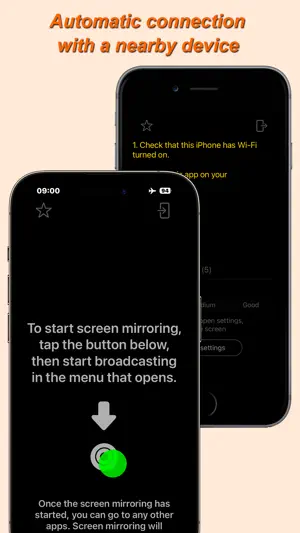
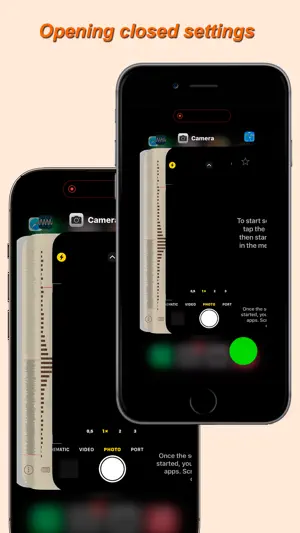
The app transmits the screen image from iPhone/iPad to another iPhone/iPad. In other words, it is a screen mirror for two iPhone (it is possible to broadcast the screen image simultaneously to several iPhones/iPads). The two devices use peer-to-peer Wi-Fi, which allows the devices to communicate directly, even if they are not on the same Wi-Fi infrastructure network. This technology is used by AirPlay®, AirDrop®, etc. In other words, Internet access or a Wi-Fi router is NOT needed. The maximum distance at which a connection can be maintained between two devices is about 20 foot. The app can work on iOS 12 and newer. This makes it possible to use older iPhone starting with the iPhone 5S and later. Two adjacent iPhones/iPads are connected automatically. To do this: • Launch this app on both devices. • Select a role for each device (sending a screen image or receiving a screen image). • Turn on Wi-Fi on both devices. • Start screen broadcast on the device that should share the screen image. Screen image sharing can be done to several devices (up to 5). In order to be able to connect several devices receiving the screen image ("mirrors") to one "screen", you need to select the required number of "mirrors" in the application settings on the device that shares the screen image. However, you cannot select a larger number of "mirrors" than you will use. If you connect several "mirrors", but one of the devices acting as a "mirror" cannot connect or does not receive the screen image, then in the "screen" settings you need to reduce the number of "mirrors" to the number of "mirrors" that receive the screen image. This prevents the connection of foreign devices that are nearby. In case of using several "mirrors" for several users, in the "screen" settings there is an option to lock changing the frame rate and image quality through the "mirror" settings. Please note that when connecting multiple "mirrors", the settings for transmitting the screen image change to the settings set on the "mirror" that was connected last. When the aspect ratio of the display of the "screen" and "mirror" is different, black margins are obtained. This is especially noticeable when broadcasting the screen image from an iPhone to an iPad. In this case, to enlarge the screen image to a size where there are no black margins, just quickly double-tap the "mirror" display (in the area where there are no settings elements and buttons). The enlarged image can be moved to the sides. If you double-tap the display again, the image will return to its original state. It is also possible to make an arbitrary increase in the image with two fingers, as when viewing a photo. For use when using the app to take photos or videos of yourself, the image can be mirror flipped. In the full version of the app, the frame rate and image quality are adjustable. With "Medium" image quality (the difference with the original is barely noticeable), the maximum frame rate (20* FPS) allows you to watch video transmitted from iPhone to another iPhone/iPad without jerking or delays (both devices must not be old). At "Good" image quality or when transferring an image with "Medium" quality from an iPad, only a low frame rate is available. * - iOS may not transfer screen frames to the app often enough, for example when scrolling. In this case, the frame rate will be lower. But when watching a video, the frequency of sending frames to the app is quite high. If one of the devices is old, then the frame transmission rate may not be sufficient, regardless of whether the device is receiving or sending frames.
What’s new
Version 1.1.6 · Updated September 3, 2026
The app has been updated only to answer new age rating questions.
App privacy
The developer, Dmitriy Kharutskiy, reported these privacy practices to Apple.
Data Not Collected
The developer does not collect any data from this app.
Alternatives to Screen Mirroring to iPhone
Looking for apps like Screen Mirroring to iPhone? Here are 6 similar apps on the App Store. The highest rated is Teleprompter - Video & Scripts (5.0/5), and all 6 are free to download.
-
 Screen Mirroring to Any Device
4.4
Screen Mirroring to Any Device
4.4
-
 Teleprompter - Video & Scripts
5.0
Teleprompter - Video & Scripts
5.0
-
 QuietMe - Call Blocker
4.2
QuietMe - Call Blocker
4.2
-
 Text Repeater Loop Text
-
 Export Contacts Fast Backup
3.0
Export Contacts Fast Backup
3.0
-
 Files - Documents Manager
| App | Rating | Price | Last updated | Compare |
|---|---|---|---|---|
| Screen Mirroring to iPhone | 3.7 / 5 (3 ratings) | Free | September 3, 2026 | |
| Screen Mirroring to Any Device | 4.4 / 5 (70) | Free | Jul 1, 2026 | Compare |
| Teleprompter - Video & Scripts | 5.0 / 5 (1) | Free | Nov 26, 2024 | Compare |
| QuietMe - Call Blocker | 4.3 / 5 (8) | Free | Oct 14, 2024 | Compare |
| Text Repeater Loop Text | – | Free | Sep 19, 2025 | Compare |
| Export Contacts Fast Backup | 3.0 / 5 (2) | Free | Dec 27, 2025 | Compare |
| Files - Documents Manager | – | Free | Oct 17, 2026 | Compare |