

Freelook Head Tracker
Jung Son Games iPhoneiPadiPod touch
Freelook Head Tracker is a free Games app for iPhone and iPad by Jung Son. Rated 4.3/5 from 32 ratings. Requires iOS 12.0. Updated November 5, 2024.
- Rating
- 4.3
- 32 ratings
- Price
- Free
- on the App Store
- Size
- 26 MB
- Age 4+
- Updated
- Nov 5
- 2024 · v1.2.2
Screenshots


About Freelook Head Tracker
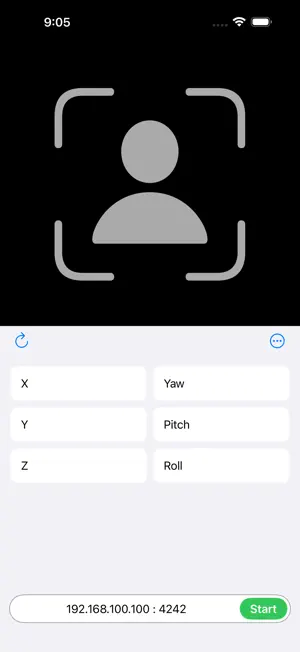
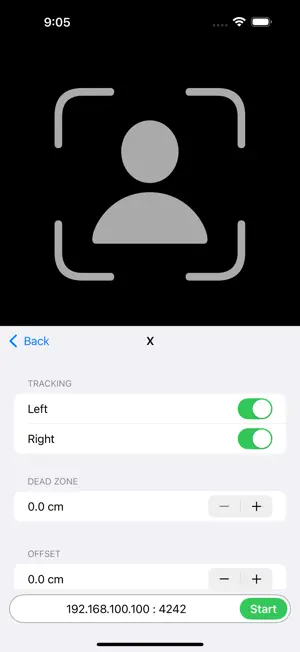
Freelook head tracker is a head tracking app for games and simulation software. It works with Opentrack desktop software to allow you to control the free look camera of your sim games hands-free. Freelook will work on all iOS devices with a front facing camera running iOS12 or later. It supports 120fps, USB connection, keyboard shortcuts, dark mode, gestures and more. You can use it for free with ads and if you like it, upgrade to pro version without ads (pro version requires iOS15 or later). Opentrack Setup 1. Download, install and run Opentrack software on your PC. Opentrack is a free software dedicated to tracking user’s head movements and relaying the information to games and flight simulation software. For the latest downloads visit https://github.com/opentrack/opentrack/releases. 2. Under Input select UDP over network. Click on the settings icon next it and remember the Port number (default is 4242). You will need to enter this value in the app. 3. Under Output select freetrack 2.0 Enhanced. 4. Under Filter select Accela. Accela works great out of the box. If you use any other filter, you may need to adjust its settings. 5. Click Mapping and adjust mapping properties to your liking. 6. If you intend to use the app’s built-in Center feature, click Options and under Shortcuts uncheck Center at startup. 7. Click Start to start receiving inputs. PC (Windows) Setup 1. On the taskbar, right click on the network icon and select Open Network & Internet Settings. 2. Under Advanced Network Settings, click Windows Firewall. 3. Click Advanced Settings to open Windows Defender Firewall with Advanced Security. 4. Click Inbound Rules option on the left pane. 5. Click New Rule… on the right pane. 6. Under Rule Type select Program and click Next. 7. Select This Program path. 8. Browse to Opentrack exe file location. It is normally located at “C:\Program Files (x86)\Opentrack\opentrack.exe”. 9. Select Allow the connection. 10. Click Next, do not change any option here and click Next again. 11. Specify a name for this rule. 12. Click Finish. 13. On the taskbar, click on the network icon. 14. Find the network you’re connected to and click Properties. 15. Under Properties, look for your IP address listed next to IPv4 address. You will need to enter this value into the app. 16. You can also find your IP address using Command Prompt. Type ipconfig then press the Enter key. App Setup 1. Run the app. 2. If iOS shows an alert requesting camera access, click OK to grant permission. 3. Click 192.168.100.100 : 4242 next to the Start button and enter IP address and Port number from Opentrack/PC (Windows) Setup. 4. With Opentrack running, click Start. 5. If iOS shows an alert requesting local network access, click OK to grant permission. If the Start button did not change to Stop, click Start again. 6. If you intend to use Opentrack’s Center feature, click More and turn off Center.
Ratings & reviews
4.3
32 ratings
What’s new
Version 1.2.2 · Updated November 5, 2024
This version added in app purchase to remove ads.
Play today's Sudoku puzzle
A quick 6×6 Sudoku every day; levels grow to the classic 9×9. A free daily puzzle from Fiplay, same board for everyone. It plays right here, no download.
App privacy
The developer, Jung Son, reported these privacy practices to Apple.
Data Used to Track You
The following data may be used to track you across apps and websites owned by other companies:
- Location: Coarse Location
- Identifiers: Device ID
- Usage Data: Product Interaction, Advertising Data
- Diagnostics: Crash Data, Performance Data
Data Linked to You
The following data, which may be collected and linked to your identity, may be used for the following purposes:
- Location: Coarse Location
- Identifiers: Device ID
- Usage Data: Product Interaction, Advertising Data
- Diagnostics: Performance Data
Used for: Third-Party Advertising, Analytics
Data Not Linked to You
The following data, which may be collected but is not linked to your identity, may be used for the following purposes:
- Diagnostics: Crash Data
Used for: Third-Party Advertising, Analytics
Alternatives to Freelook Head Tracker
Looking for apps like Freelook Head Tracker? Here are 6 similar apps on the App Store. The highest rated is FeelFPV TinyWhoop (4.8/5), and 4 of the 6 are free to download.
-
 Race Dashboards Simracing
4.5
-
 Red Flag Sim
4.6
-
 FeelFPV TinyWhoop
4.8
-
 Moonlight Game Streaming
4.2
-
 Aerofly FS Global
4.3
-
 FeelFPV
4.7
| App | Rating | Price | Last updated | Compare |
|---|---|---|---|---|
| Freelook Head Tracker | 4.3 / 5 (32 ratings) | Free | November 5, 2024 | |
| Race Dashboards Simracing | 4.5 / 5 (44) | Free | Jun 9, 2026 | Compare |
| Red Flag Sim | 4.6 / 5 (82) | 0.99 USD | Sep 19, 2026 | Compare |
| FeelFPV TinyWhoop | 4.8 / 5 (326) | Free | Mar 6, 2026 | Compare |
| Moonlight Game Streaming | 4.2 / 5 (671) | Free | Feb 26, 2024 | Compare |
| Aerofly FS Global | 4.3 / 5 (1,214) | 3.99 USD | Oct 10, 2026 | Compare |
| FeelFPV | 4.7 / 5 (976) | Free | Oct 16, 2026 | Compare |