

sqft AR
Noriaki Murao Utilities iPhoneiPadiPod touch
sqft AR is a free Utilities app for iPhone and iPad by Noriaki Murao. Rated 4.4/5 from 846 ratings. Requires iOS 13.0. Updated December 30, 2025.
- Rating
- 4.4
- 846 ratings
- Price
- Free
- on the App Store
- Size
- 7 MB
- Age 4+
- Updated
- Dec 30
- 2025 · v1.7
Screenshots


About sqft AR
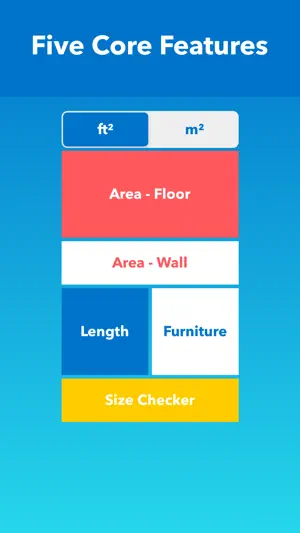
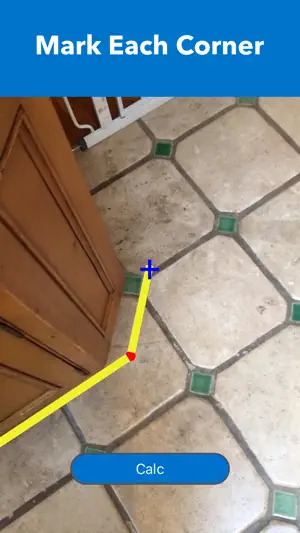
The app has five core features. 1. Area - Floor: To measure the horizontal area on a floor in ft² or m² 2. Area - Wall: To measure the vertical area on a wall in ft² or m² 3. Length: To measure the length between two points 4. Furniture: To measure the relative size of the space by placing standard-sized virtual furniture 5. Size Checker: To check the relative size of a product in the real world by comparing it to other objects. To check whether the product's size fits the space. HOW TO USE 1. Area - Floor or Wall - Choose a unit between ft² or m² - Tap "Area - Floor" or "Area - Wall" on the main menu - Move the camera to scan the surrounding area - Find a flat surface on the floor or on the wall until the blue square appears - Place the pointer ("+" on the center of the screen) to one of the corners of the floor or the wall - Tap the screen to mark with a red sphere - Move slowly clockwise ( or counterclockwise) to the next corner and repeat the action until all corners are marked by a red sphere ( Do not mark twice on the starting point) - Tap the "Calc" button to calculate the area - To save data, tap the "Save" button, type remarks, and tap "Save." - To take a photo, tap the "Camera" button - To find saved data of Area, tap "File" mark on the top right corner of the main menu - To see the location and photo (if it was taken) of saved data, tap the row on the list of saved data - To delete saved data, tap "File" mark on the main menu and slide your finger from right to left on the row in the list of saved data - In some cases, the AR shaded orange area may be displayed outside of the outlines or overlapped; this does not affect the calculation of the area 2. Length - Tap "Length" on the main menu - Move the camera to scan the surrounding area - Wait until a lot of yellow dots display on the surface of the target object. - Place the pointer ( "+" on the center of the screen) to the starting point of measuring object - Tap the screen to mark with a red sphere - Move slowly to the other end of the measuring object and place the pointer - Tap the screen to display the length - To measure another object, tap the "Reset" button and repeat the same procedure - To take a photo, tap the "Camera" button 3. Furniture - The virtual furniture is standard or typical size to help measure the relative size of the space - Tap "Furniture" on the main menu - Move the camera to scan the surrounding area - Find a flat surface on the floor until the blue square appears - Choose one of the furniture items on the list of furniture and tap it - Tap the screen to place the furniture - To rotate the furniture, touch the screen on the furniture and slide your finger - To move the furniture, long-press the screen on the furniture and slide your finger - To place more furniture, tap the "Add Another Item" button and repeat the procedure - To hide the size of furniture, tap the "Info" button - To display the size of furniture, tap the "Info" button again - To take a photo, tap the "Camera" button 4. Size Checker - This feature is to check the relative size of the product in the real world by comparing it to other objects - To check whether the size of the product fits the space or not - Select measure unit - Type Width, Depth, and Height into each field - Select the surface to place the AR box and tap GO - Move the camera to scan the surrounding area - Find a flat surface to place the AR box until the blue square appears - Tap the screen where you want to place the AR box.
Ratings & reviews
4.4
846 ratings
What’s new
Version 1.7 · Updated December 30, 2025
Updates and bug fixes.
App privacy
The developer, Noriaki Murao, reported these privacy practices to Apple.
Data Used to Track You
The following data may be used to track you across apps and websites owned by other companies:
- Location: Coarse Location
- Identifiers: Device ID
- Usage Data: Product Interaction, Advertising Data
Data Not Linked to You
The following data, which may be collected but is not linked to your identity, may be used for the following purposes:
- Location: Coarse Location
- Identifiers: Device ID
- Usage Data: Product Interaction, Advertising Data
- Diagnostics: Crash Data, Performance Data
Used for: Third-Party Advertising, Developer’s Advertising or Marketing, Analytics, Product Personalization, App Functionality
Alternatives to sqft AR
Looking for apps like sqft AR? Here are 6 similar apps on the App Store. The highest rated is CamToPlan - AR tape measure (4.7/5), and all 6 are free to download.
-
 Square Footage Calculator +
4.5
-
 CamToPlan - AR tape measure
4.7
-
 Room Scanner - Easy Measure Rm
4.7
-
 AR Plan: Measure, Room Scanner
4.4
-
 Square Footage Calculator:Areo
4.0
-
 Calculator area
1.0
| App | Rating | Price | Last updated | Compare |
|---|---|---|---|---|
| sqft AR | 4.4 / 5 (846 ratings) | Free | December 30, 2025 | |
| Square Footage Calculator + | 4.5 / 5 (294) | Free | Jun 17, 2026 | Compare |
| CamToPlan - AR tape measure | 4.7 / 5 (16,644) | Free | Sep 28, 2026 | Compare |
| Room Scanner - Easy Measure Rm | 4.7 / 5 (98) | Free | Oct 22, 2025 | Compare |
| AR Plan: Measure, Room Scanner | 4.4 / 5 (1,401) | Free | Oct 21, 2026 | Compare |
| Square Footage Calculator:Areo | 4.0 / 5 (5) | Free | Jul 30, 2026 | Compare |
| Calculator area | 1.0 / 5 (2) | Free | Feb 8, 2026 | Compare |
Compare sqft AR with the top alternatives: ratings, updates, ASO score and keyword gaps →