
MiCast: Miracast Android to TV
Markhor Co Tools Contains ads
Miracast Android to TV helps to cast mobile phone screen to TV screen.
- Downloads
- 4.3K+
- on Google Play
- Price
- Free
- No in-app purchases
- Updated
- Aug 23
- 2024 · v1.0.4
Screenshots
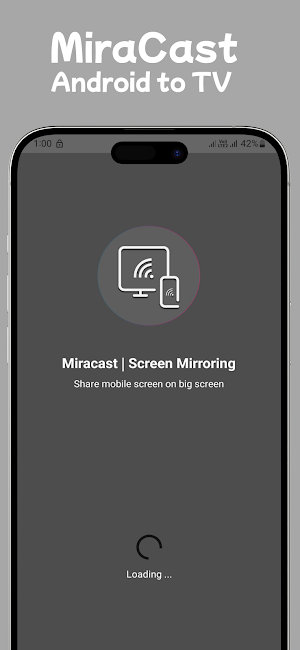
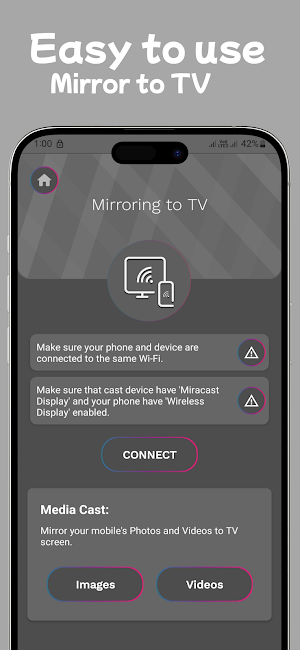



About MiCast: Miracast Android to TV
MiCast: Miracast Android to TV helps to High-definition content sharing on Wi-Fi devices everywhere. Screen Mirroring app helps you cast phone and tablet to TV fast and stably. It casts android device screen to TV screen by Wireless display device such as Smart TV or Wireless display adapters such as AnyCast, ChromeCast Amazon Cast product and many more.
If your TV device supports Smart TV.
1. Check your TV weather it supports Smart TV or Wireless Display / Miracast.
2. Your device and TV must connect same network.
3. Click connect button on app and choose TV after searching.
HDMI Device Support Guide:
1. Plug the main device into the HDMI port on your TV and switch.
2. Connect WiFi cable (micro USB head) to main device.
3. Plug USB cable into USB port OR an external USB power adapter.
4. You should see the main device page on TV.
1- Projects content from mobile devices to automobile infotainment systems.
2- Shares a laptop screen with a conference room projector in real-time.
3- Streams HD and 4K Ultra HD movies from a tablet to an HD television.
4- Shows pictures from a smartphone, computer, or tablet to a large screen television.
5- Support a wide range of audio/video formats to extend battery life in mobile devices.
Disclaimer:
Miracast | Screen Mirroring app is not affiliated with any of the trademarks mentioned here. Names used in this description are for demonstration purpose. All names are copyrighted to their owners like anyCast or ChromeCast is copyrighted to their own Inc.
How to use this App?
If your TV device supports Smart TV.
1. Check your TV weather it supports Smart TV or Wireless Display / Miracast.
2. Your device and TV must connect same network.
3. Click connect button on app and choose TV after searching.
HDMI Device Support Guide:
if your device is not supporting the wifi display technology.
1. Plug the main device into the HDMI port on your TV and switch.
2. Connect WiFi cable (micro USB head) to main device.
3. Plug USB cable into USB port OR an external USB power adapter.
4. You should see the main device page on TV.
Screen Mirroring - Miracast for TV:
1- Projects content from mobile devices to automobile infotainment systems.
2- Shares a laptop screen with a conference room projector in real-time.
3- Streams HD and 4K Ultra HD movies from a tablet to an HD television.
4- Shows pictures from a smartphone, computer, or tablet to a large screen television.
5- Support a wide range of audio/video formats to extend battery life in mobile devices.
Disclaimer:
Miracast | Screen Mirroring app is not affiliated with any of the trademarks mentioned here. Names used in this description are for demonstration purpose. All names are copyrighted to their owners like anyCast or ChromeCast is copyrighted to their own Inc.
What’s new
Version 1.0.4 · Updated August 23, 2024
- Latest Version Supported. - Improve Design. - Major Bug fixed. - Enhance Cast Feature
User reviews

very good

In Xiaomi I can share screen mirror my phone to my smart TV. Recommended for you.

Good working app and easy to use
Alternatives to MiCast: Miracast Android to TV
Looking for apps like MiCast: Miracast Android to TV? Here are 3 similar Android apps on Google Play. The highest rated is ZUMIMALL (4.6/5), and all 3 are free to download.

| App | Rating | Price | Installs | Last updated | Compare |
|---|---|---|---|---|---|
| MiCast: Miracast Android to TV | – | Free | 1,000+ | Aug 23, 2024 | |
| ZUMIMALL | 4.6 / 5 | Free | 100,000+ | Sep 11, 2026 | Compare |
| yescan - PDF OCR Scanner | 4.4 / 5 | Free | 50,000+ | Sep 16, 2026 | Compare |
| RICOH Smart Device Connector | 3.2 / 5 | Free | 1,000,000+ | Oct 21, 2026 | Compare |