LuxGuard – Blue Light Filter
Smart sunset blue light filter & extra dim. Sleep well. No subscription — Ever.
About LuxGuard – Blue Light Filter
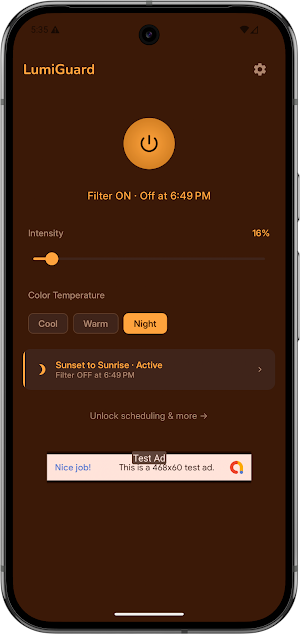
Protect your eyes from blue light with a full-screen amber overlay that turns itself on at sunset and off at sunrise — automatically, every night.
LuxGuard covers every pixel of your display: status bar, navigation bar, notch. Most screen filter apps leave gaps. This one does not.
WHY BLUE LIGHT MATTERS AT NIGHT
Your phone's screen emits short-wave blue light at around 480 nm — the exact wavelength that suppresses melatonin and disrupts the body's sleep signal.
Standard display warm modes reduce color temperature but leave the overlay incomplete. LuxGuard applies a full-screen color filter above every app on your device, reducing blue light exposure from the moment the sun sets.
NO SUBSCRIPTION. ONE PRICE.
Most filter apps on the market use subscriptions, charge repeatedly, or bury features behind paywalls that never go away. LuxGuard does not.
The three built-in presets are free and fully functional. Unlock all ten premium presets with a single one-time payment of $0.99 — no recurring charges, no account required.
FILTER PRESETS
• Cool — Light amber at 30% intensity. Reduces around 15–20% of energetic blue light. Designed for daytime and office use with minimal color distortion.
• Warm — Deep amber at 45% intensity. Equivalent to indoor incandescent lighting (~2700K). Natural evening use.
• Night — Red-orange at 60% intensity. Reduces 60–70% of blue light. The strongest free-tier protection.
• Focus — Soft amber at 25% intensity. Optimized for extended reading, coding, or study where text legibility and color accuracy both matter.
• Paper (3 types) — Kindle Sepia color with a subtle grain textures. Warm reading-lamp feel for e-books and long-form reading. The only preset you cannot replicate by moving the intensity slider.
• Sepia — Reduces both blue and green channels. Lower perceived saturation and visual noise. Preferred by users with photosensitivity or glare sensitivity.
• Dusk — Orange-warm at 52% intensity. The pre-bedtime wind-down mode: more protective than Warm, less intense than Night.
• Candle — Pure orange at 55% intensity (~2200K). The Candlelight equivalent that desktop blue-light apps made famous — finally on Android.
• Cinema — Orange-amber with a radial vignette that darkens screen edges. Designed for pre-sleep video watching: reduces peripheral glare without washing out the picture.
• Night Vision — Pure red at 65% intensity, 625–700 nm wavelength. Photobiologically correct pre-sleep filter: red wavelengths have negligible
melatonin-suppressing effect. Based on the same protocol used in astronomy and military night-adaptation.
FEATURES
• Full-screen overlay — covers status bar, navigation bar, and notch on all Android devices
• Smart App Rules (Per-App Automation) — Automatically switches to a specific preset when launching designated apps
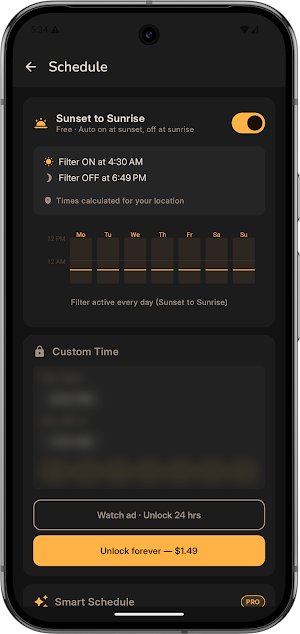
• Automatic sunset/sunrise schedule — uses your approximate location to calculate times
• Custom schedule (Premium) — set your own ON/OFF times and choose which days of the week the filter activates
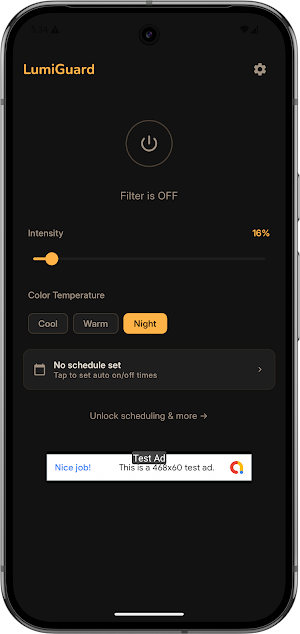
• Intensity slider — adjust filter strength from 10% to 90% in any preset
• Quick Settings tile — toggle the filter from the notification shade without opening the app
• Live preview — tap any locked premium preset to see it applied to your live screen before purchasing
• System-wide — works above every app including video, browsers, and games
PERMISSIONS
• Approximate location — used only to calculate local sunset and sunrise times. Processed entirely on your device. Never stored, never transmitted.
• Display over other apps — required for the overlay to appear above all applications.
• Schedule exact alarms — required to turn the filter on and off at precise times.
COMPATIBILITY NOTE
Some security-sensitive apps (banking, some streaming services) may not respond to taps while any screen overlay is active. This is a built-in security behavior. You can choose to enable the trusted accessibility service or toggle the filter off via the Quick Settings tile.
